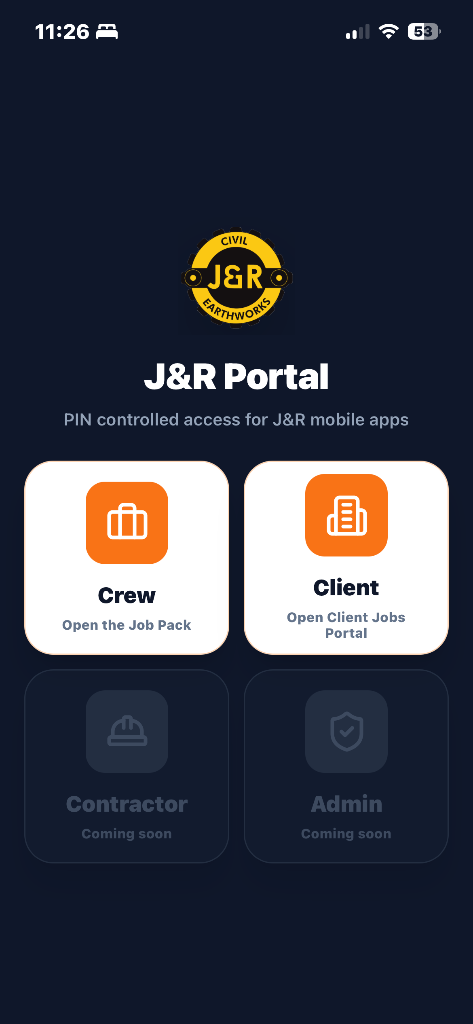
J&R Portal launcher
Four-button entry screen for Crew, Client, Contractor, and Admin access.
A distribution-ready guide for Admin, employees, contractors and clients covering Jobs, Live Jobs, PIN access, trusted-device history, per-PIN 2FA controls, Admin App navigation, Alias Job Numbers, Job Media, the Player, Geofence Logs, scalable geofence zones, Timesheet evidence, Job Folder, PDF report sharing, equipment inspection reconciliation, Sender/email delivery, QR order references, mobile job apps, pay slip methodology, Client Jobs Portal, and visual job planning with Planner Whiteboard.
Jump straight to the guide section you need, with quick index links under each heading.
Dashboard hero defaults, logo history, Job Media lazy-load batch size, business timezone, geofence settings and automatic close-off controls.
Dashboard weather line, hero weather button, Job Media blue-ribbon job forecast and PDF export for civil planning.
How Admin issues PINs, sends invitations, controls 2FA and how users sign in through the mobile launch screen.
First device trust, new-device 2FA, return access and trusted-device history in PIN Access Logs.
Employee work-hour records, weekly Timesheet Reports, overtime, job rows, approvals and payroll evidence.
How jobs connect site details, crew, equipment, safety, photos, documents and costs.
How Admin redirects a job to the correct substitute contact/entity while preserving the job history.
The delivery console for job documents, safety, communications, contractor access and handover.
Default Job Pack inclusion, trace logs, alerts, paper confirmations and certificate options.
How GPS arrival/departure evidence supports Timesheets, scalable zones, live crew view and cross-job departure interpretation.
Mandatory inspection expectations, completed inspections, employee/equipment breakdowns, chart enlargement and PDF export.
Visual planning for jobs, crew, equipment, documents, safety items and staging.
How contractor PINs, job assignment, 2FA and authorised Contractor App jobs work.
Email confirmation code flow used after PIN entry for controlled portal access.
Short readable job references used beside QR scanning across desktop and mobile.
Controlled client access to jobs, evidence, documents, requests and project updates.
Recent updates now documented in this Resources guide for Admin review, rollout notes and handover reference.
Dashboard hero now shows the current-location weather condition and forecast line, with a weather icon button opening the 7-day civil forecast popup.
Job Media blue ribbon controls now include a Weather button for the selected job, opening a 7-day forecast for that job location with PDF export.
PDF report sharing now uses clean public report links, so email recipients see an Open report link and an Expiry line instead of long raw file paths.
PDF email titles now use friendly document names, such as Practical Completion Report, while the job reference stays in the email context rather than the file name.
System-generated report emails are sent through the approved email workflow and logged for outbound audit review.
Job Folder and report data now show Contracted Party wording and can look up the correct party when a substitute job contact is used.
Job Media action buttons, including PDF Report and map actions, now only appear when a specific job is selected or the gallery is grouped by job.
Photo player orientation is still dynamically checked, with saved rotation overrides corrected where recent evidence photos were cached in the wrong direction.
Company Settings is the admin control page for shared dashboard hero behaviour, business timezone and geofence operating defaults.
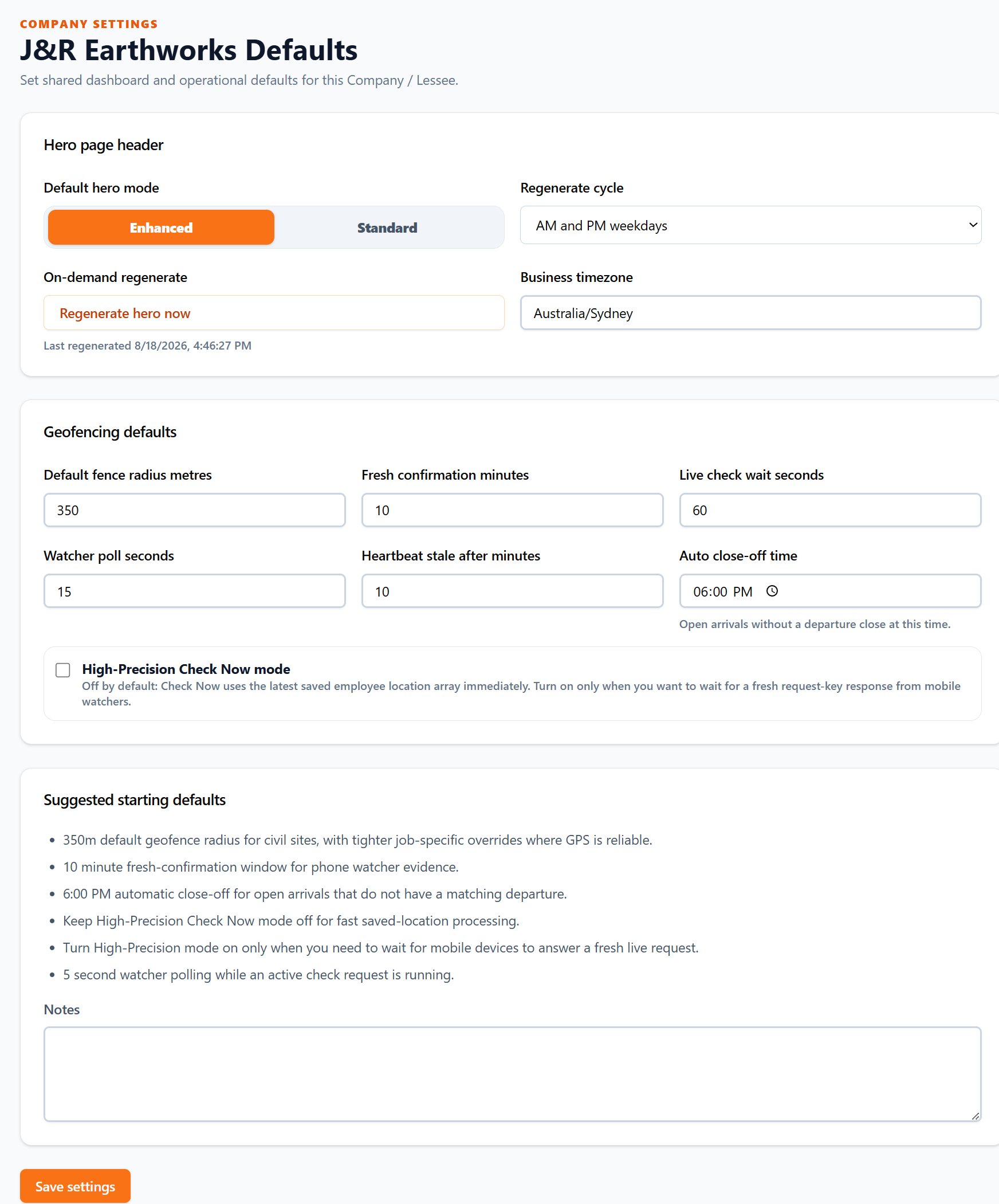
Settings controls
Use this page to set the default dashboard hero mode, regenerate cycle, on-demand hero refresh, business timezone, geofence timing and automatic departure close-off.
Company Settings controls shared defaults for the Company / Lessee logo, dashboard hero header, Job Media lazy-load batch size, business timezone, geofence behaviour and operational close-off rules.
Logo control shows the current company image, allows a new image upload, keeps the original and saved generated versions, and lets Admin select the active logo again later.
Logo refresh handling now keeps the active tenant logo visible after reloads by using the selected Company Settings logo and tenant fallback consistently.
Hero page header lets Admin choose Enhanced as the default visual dashboard mode or switch the default back to Standard.
Job Media performance lets Admin set the photos-per-batch lazy loading value, defaulting to 500 so older equipment and poor internet connections are protected as photo history grows.
Regenerate hero now refreshes the saved hero image selection on demand, while the regenerate cycle controls whether the hero changes daily, weekly, or on weekday AM/PM periods.
Geofencing defaults set the company-wide fallback radius, fresh phone confirmation window, live check wait time, watcher polling interval and heartbeat stale threshold.
Auto close-off time defaults to 6:00 PM and is used to close open arrivals that do not have a matching departure.
High-Precision Check Now mode should normally stay off for fast saved-location processing; turn it on only when Admin specifically wants to wait for a fresh live mobile response.
Weather is now available from the dashboard hero and the Job Media blue ribbon, with a civil-enterprise 7-day forecast and PDF export for planning, pre-starts and site records. Unlike a normal consumer forecast, the Civil Forecast translates rain, wind, UV and heat into practical controls for excavation, lifting, signage, dust, access and outdoor crew safety.
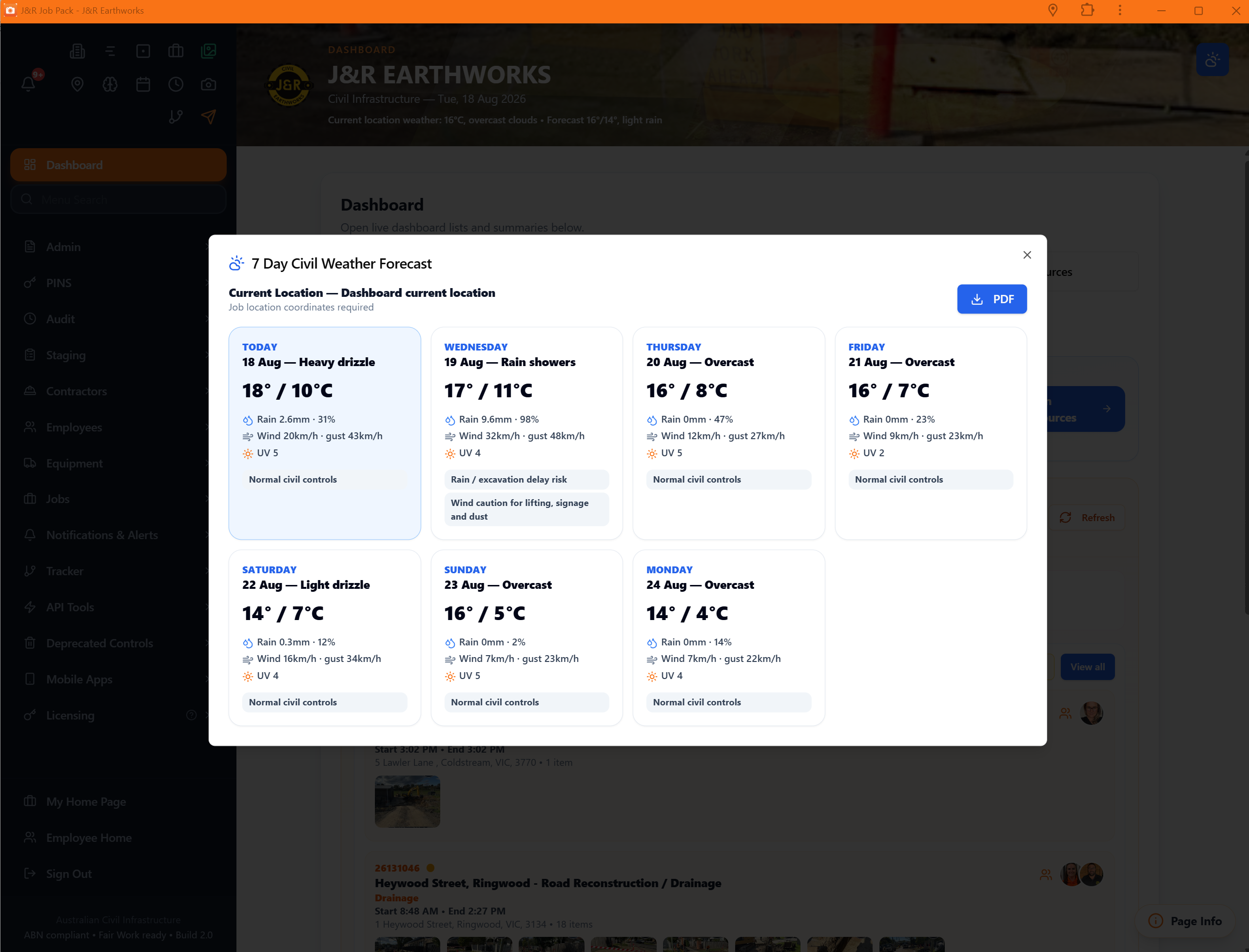
7-day civil forecast popup
The forecast includes temperature, rain, wind, gusts and UV, then adds civil work risk notes such as excavation delay, lifting/signage/dust caution, UV controls and heat-stress controls.
The Dashboard hero weather line uses the current browser location to show the current condition and short forecast directly under the dashboard title.
The Dashboard hero weather icon opens a 7-day civil forecast popup for the current location and includes a PDF button for saving or sharing the forecast.
Job Media grouped-by-job blue ribbon controls include a Weather button for each selected job, using the job’s saved latitude and longitude.
The Civil Forecast is different from a normal public weather forecast because it converts weather conditions into construction-site work controls, not just temperature and rain information.
Rain totals and probability are translated into excavation, trenching, compaction, access-track, spoil and delay risk notes so supervisors can plan civil works earlier.
Wind and gust speeds are translated into lifting, signage, dust, plant operation and loose-material cautions that matter on earthworks and infrastructure sites.
UV and heat conditions are translated into PPE, hydration, shade, break and heat-stress controls for outdoor crews.
The civil forecast highlights operational controls such as rain / excavation delay risk, wind caution for lifting, signage and dust, high UV controls and heat stress controls.
The PDF export gives supervisors and Admin a simple weather record for pre-starts, toolbox talks, job planning and client/site documentation.
If a job forecast says location coordinates are required, update the job map pin or saved site coordinates before relying on the weather popup.

Field access for assigned jobs
Build 1.8.4
Today’s jobs
Ready for field use
Site documents
Ready for field use
Photos & evidence
Ready for field use
Arrive / depart
Ready for field use
Enter your 6-digit client PIN
Build 1.8.4
Current screens from the working J&R Portal, Client Jobs Portal, and Crew Job Pack app.
Four-button entry screen for Crew, Client, Contractor, and Admin access.
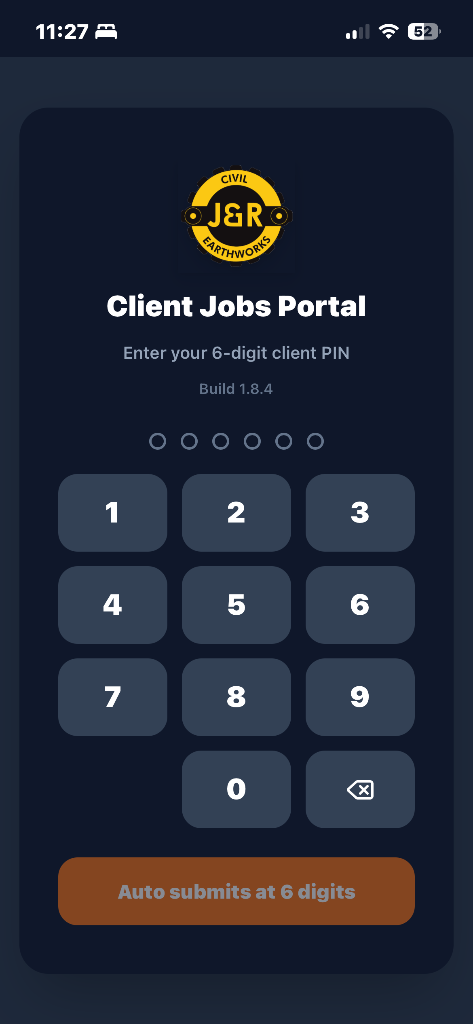
PIN-controlled Client Jobs Portal access.
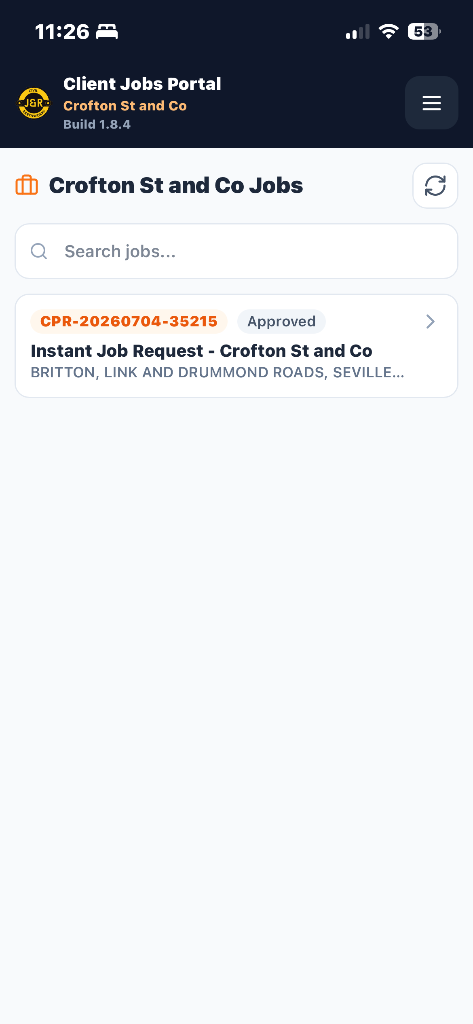
Client view showing approved jobs and search.
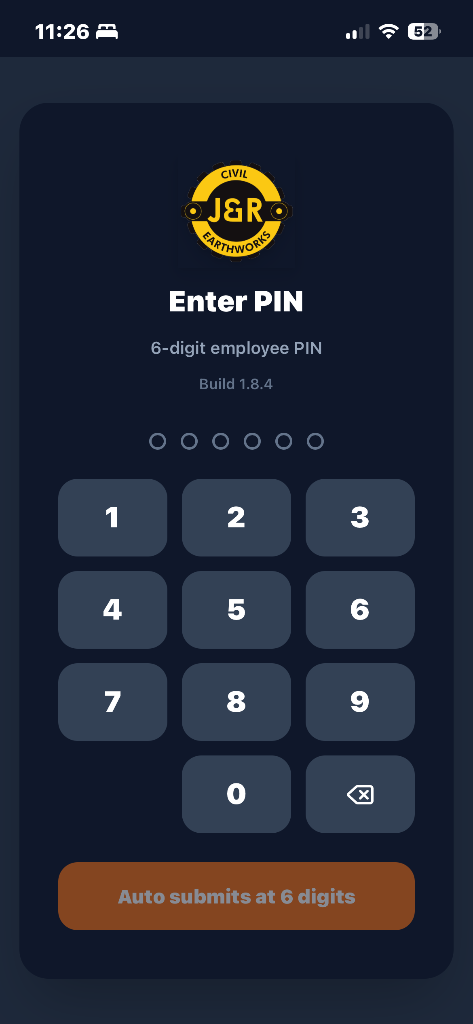
Employee PIN entry for the Job Pack app.
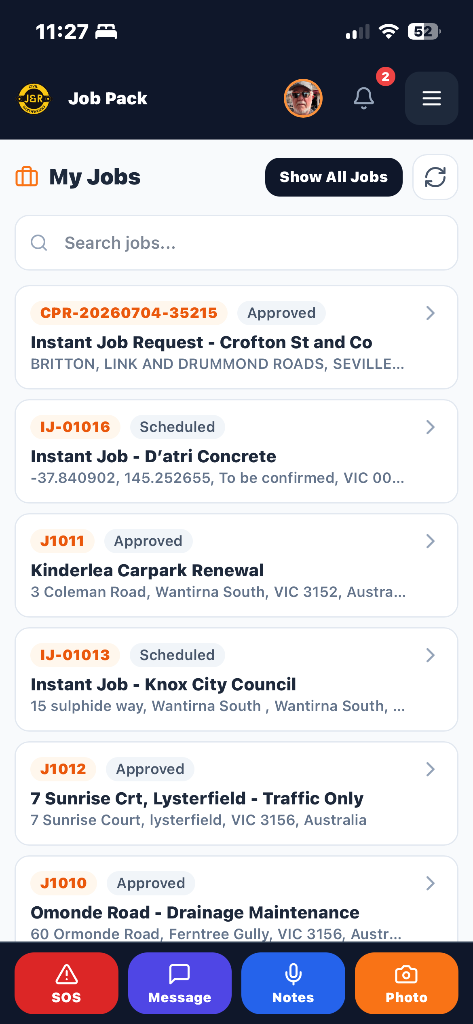
Field worker job list with quick SOS, message, notes, and photo actions.
This section explains how Admin controls PIN access, sends invitations, and how users sign in to the correct J&R mobile app.
Important: PINs should be kept private. If a person loses their PIN or access needs to be removed, Admin should deactivate or regenerate the PIN rather than asking the user to share it back.
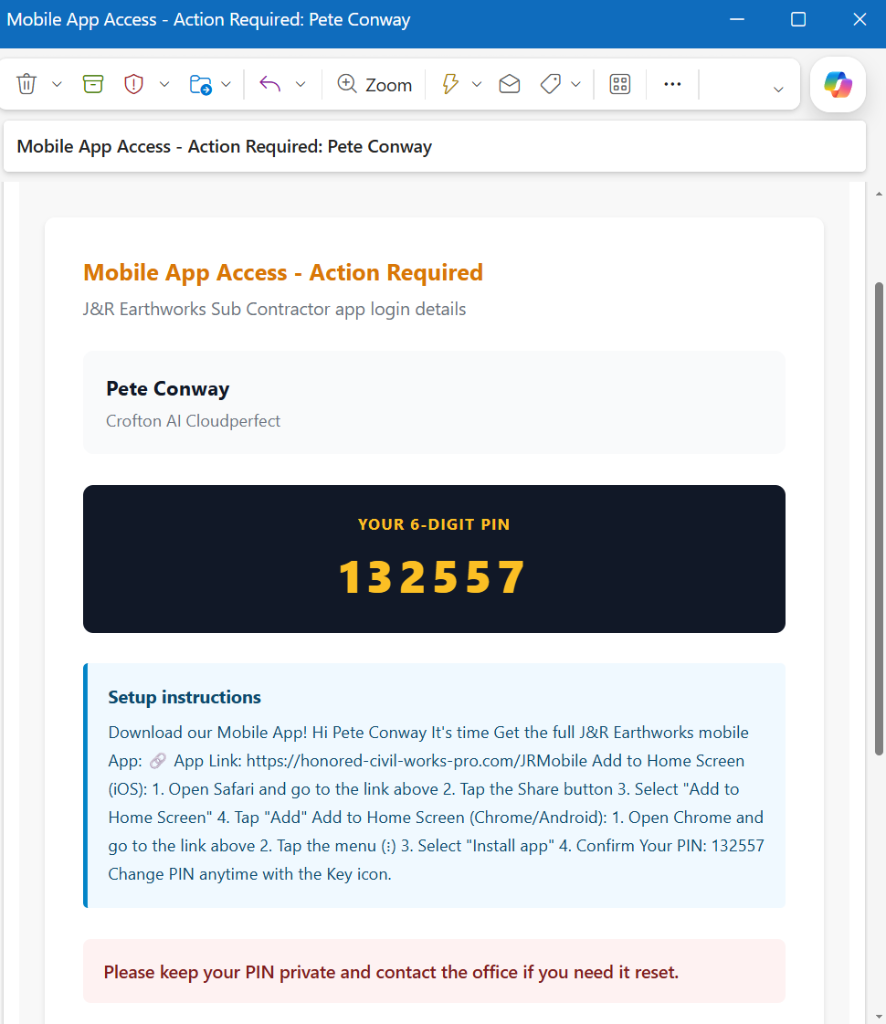
PIN invitation email
Admin can send the approved person their mobile app link, 6-digit PIN and setup instructions from the PIN management screen.
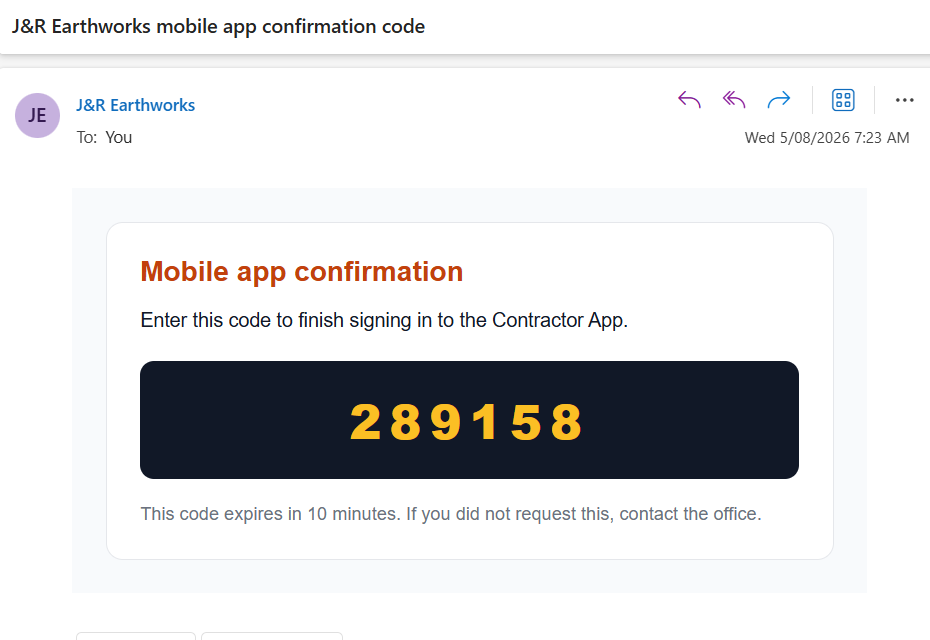
2FA confirmation email
If 2FA is enabled, the user receives a one-time 6-digit code to finish signing in. The code expires after 10 minutes.
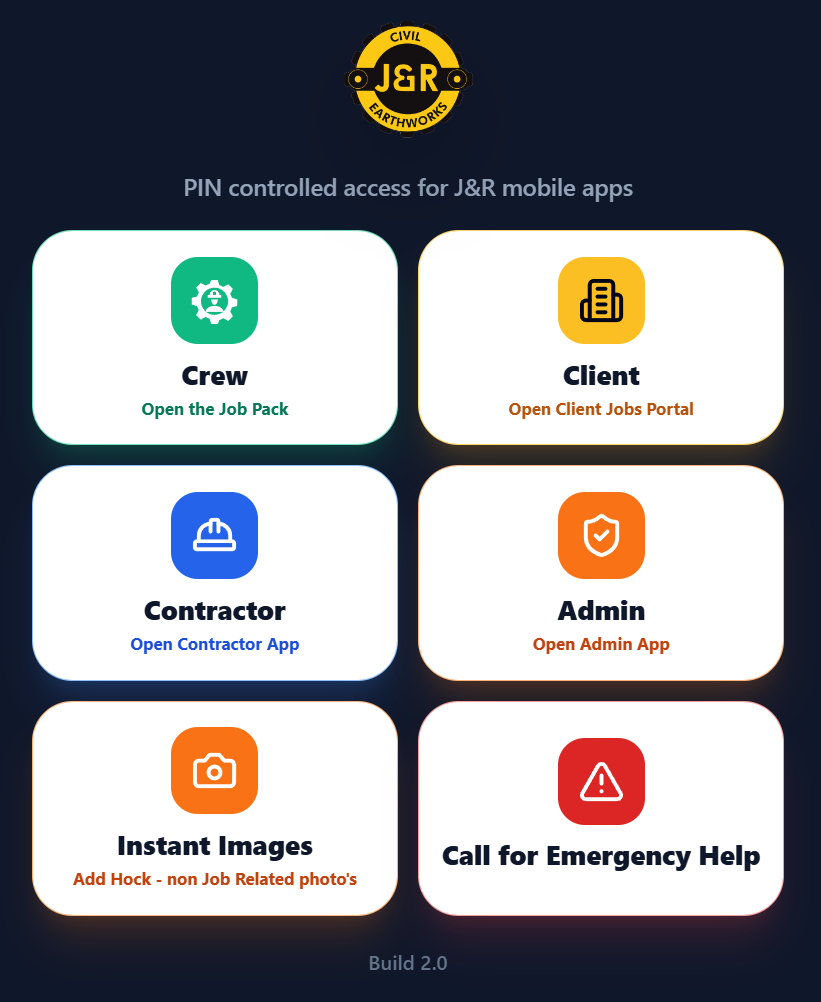
Mobile app start menu
The user starts from the J&R mobile launch screen and chooses the correct tile: Crew, Client, Contractor, Admin, Instant Images or Emergency Help.
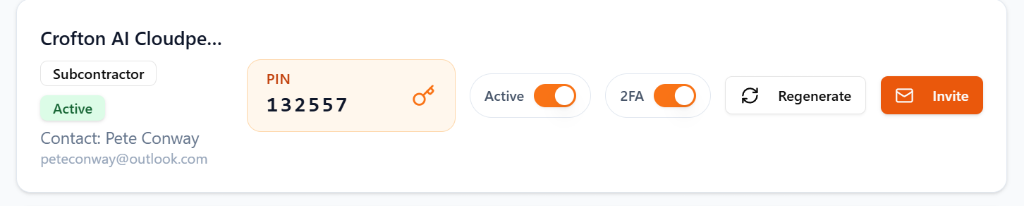
Subcontractor PIN management
Admin can view the PIN, confirm the record is active, toggle 2FA, regenerate the PIN and send the invitation email.
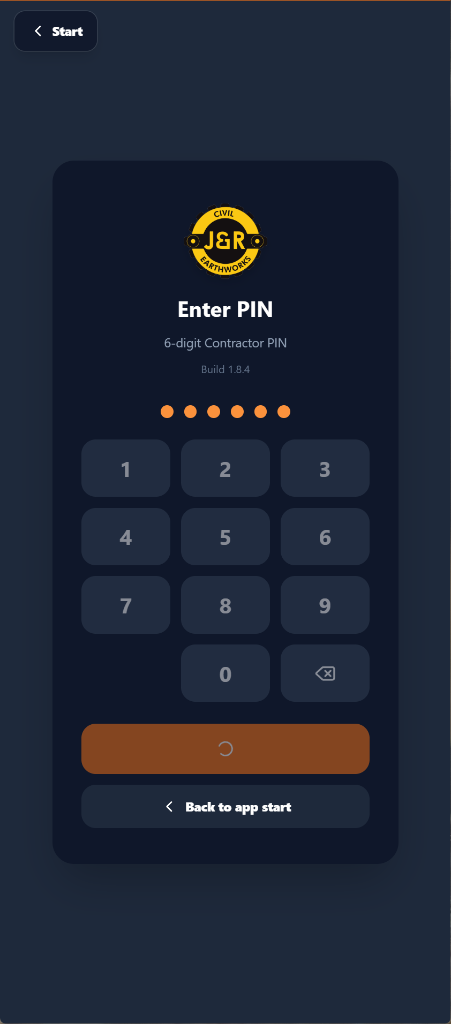
Contractor PIN sign-in
The contractor enters their 6-digit PIN on the selected app screen. Back to app start returns them to the launch menu if they chose the wrong tile.
Client Portal and Contractor App access can require an email confirmation code after the user enters their PIN, adding a second check before job information opens.
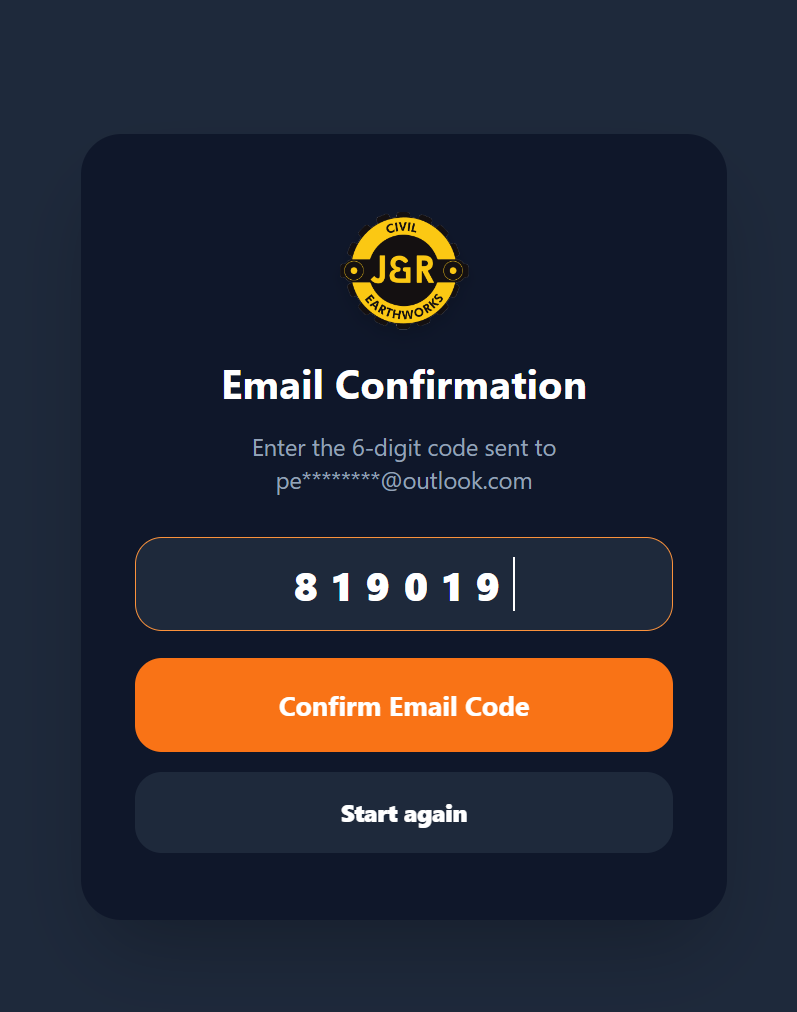
Mobile confirmation screen
The portal masks the email address and asks the approved client or contractor to enter the 6-digit code.
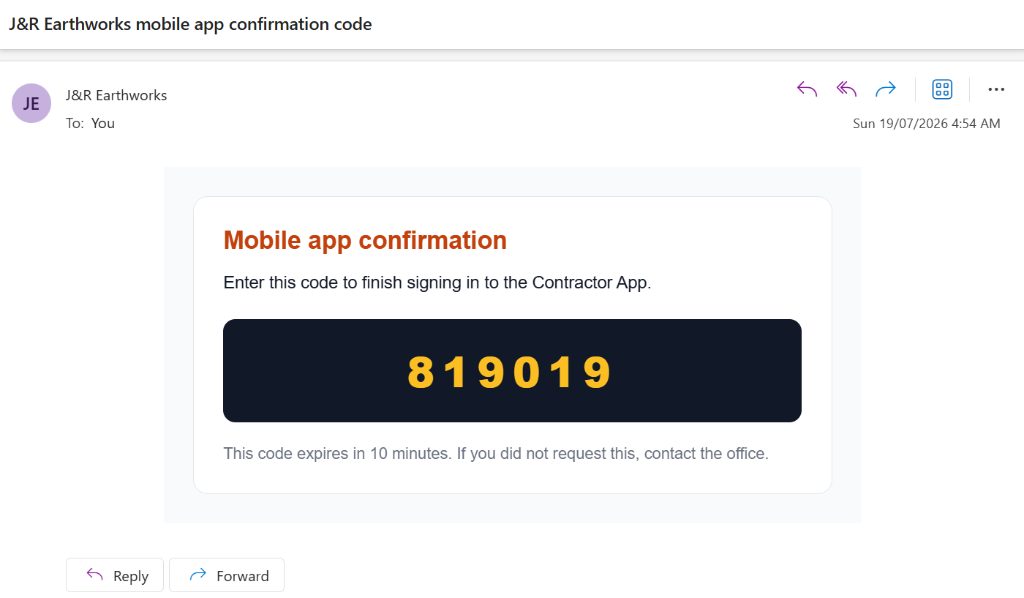
Confirmation email
The email supplies the one-time confirmation code and explains that it finishes signing in to the Contractor or Client app.
Client Portal and Contractor App PIN records can require a second email confirmation step after the 6-digit PIN is accepted.
The confirmation screen masks the recipient email address, asks for the 6-digit code, and includes Start again if the user needs to restart access.
The email message identifies the mobile app confirmation code and explains that the code finishes signing in to the Client or Contractor App.
Codes expire after 10 minutes, so the process protects access without making approved users wait for Admin intervention each time.
These screens show how Admin manages client access, communications, portal PINs, and resources from inside the J&R Earthworks app.
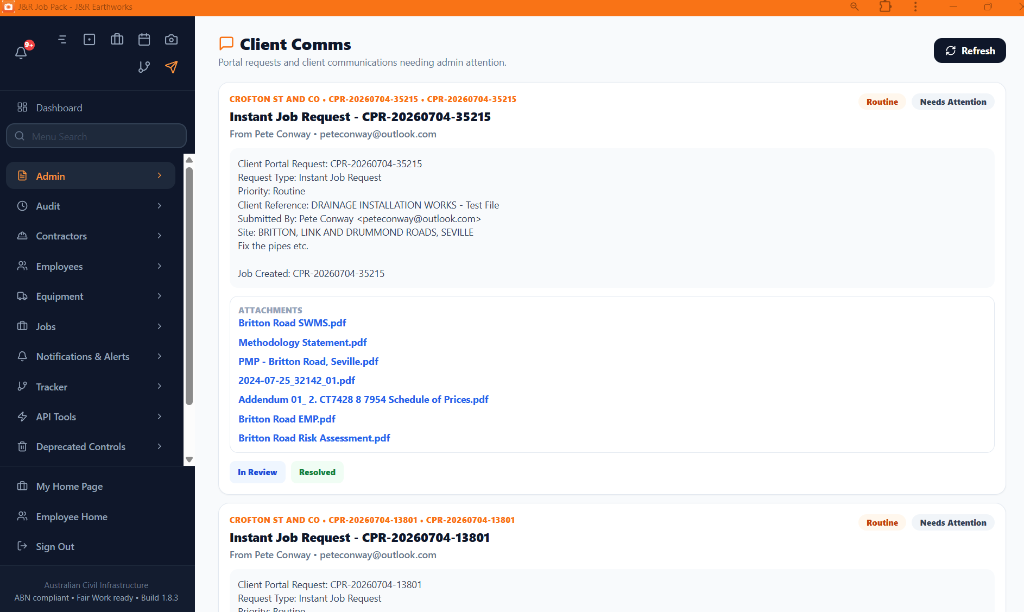
Admin can review client portal requests and messages, see submitted job details, open attachments, and move items between In Review and Resolved.
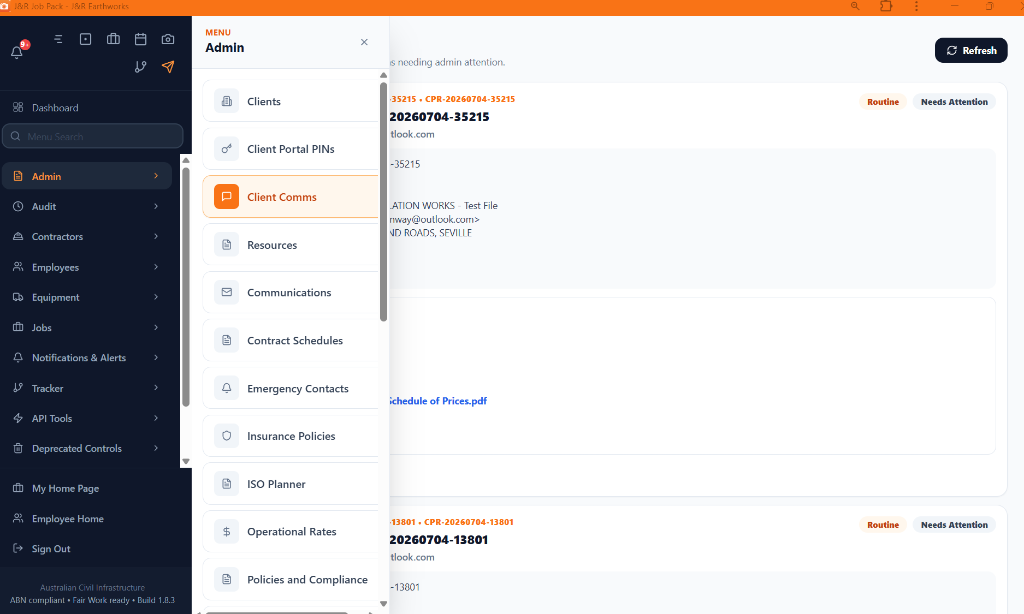
The Admin menu groups the client management tools together, including Clients, Client Portal PINs, Client Comms, Resources, and Communications.
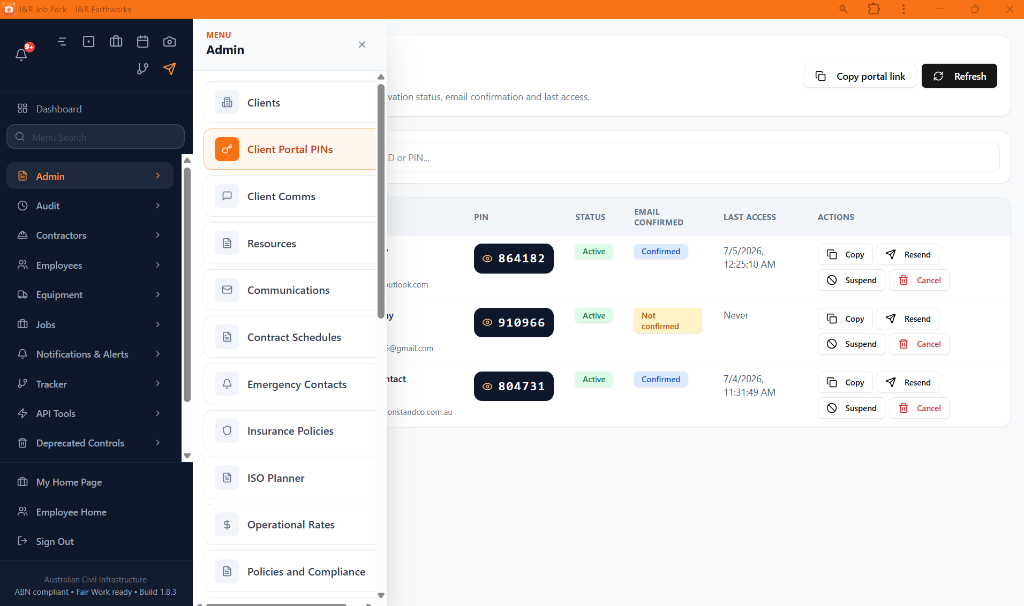
Admin can view each authorised portal user, check email confirmation status, copy or resend PIN details, and suspend or cancel access when required.
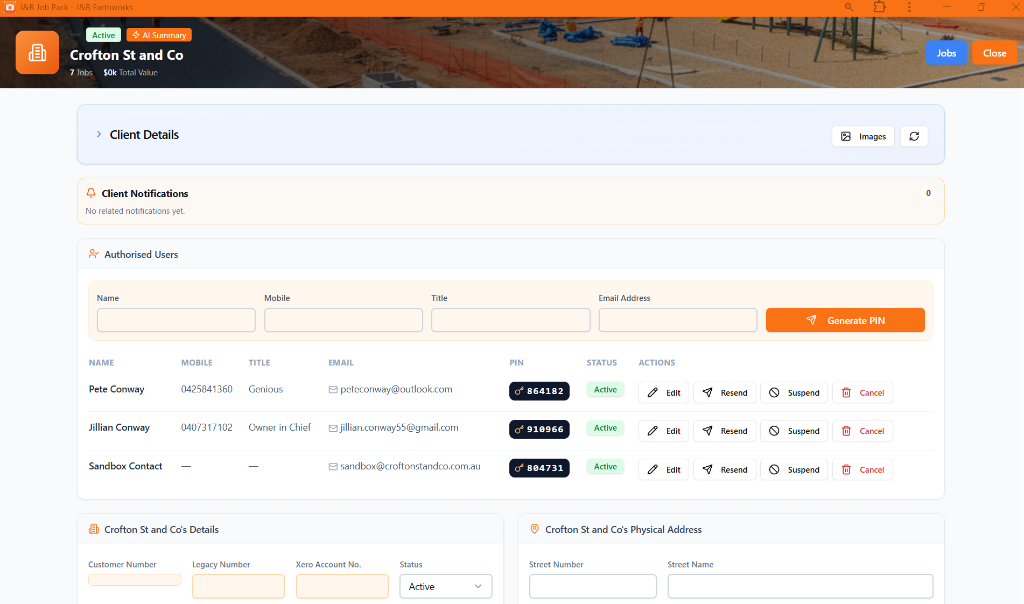
Inside a client record, authorised users can be added and managed directly, with Generate PIN, Edit, Resend, Suspend, and Cancel actions available per person.
Crew App PIN access now uses a trusted-device model: first entry establishes trust, new devices use email 2FA, and confirmed devices can return normally.
The first successful Crew PIN entry for a person becomes the trusted device, so first access is not blocked by an email challenge.
If the same Crew PIN is later entered from another browser, phone or cleared app session, the system treats it as a new device and requires the 6-digit email confirmation code when 2FA is enabled.
After the email code is accepted, that second device is also trusted and future Crew App access from either trusted device should only require the PIN.
PIN Access Logs show whether access was First Device Trusted, New Device Confirmed or Known Device, helping Admin confirm what happened without relying on screenshots.
The PIN Access Logs page now includes a Trusted Devices history table showing person, device label, browser/platform, trust status, first seen, last seen, trusted date and use count.
Testing note: the Admin App now uses admin-level employee PINs for entry, keeps menu items inside PIN-gated Admin App routes, and recognises valid Admin PIN sessions on the PIN management and Comms screens.
Admin PIN entry
Enter a 6-digit admin employee PIN to open the Admin App menu.
Lock button
Lock clears the current PIN session and returns the user to the PIN screen.
2FA per PIN
Admin, Employee, Subcontractor and Client Portal PIN records each have their own 2FA toggle, enabled by default.
PIN management access
A valid Admin PIN session is approved access for the PIN management pages, including Client Portal PINs.
Mobile Comms tab
The Admin App Comms tab can load communication records through the approved PIN-gated data pathway.
Jobs navigation
Jobs has an orange Details shortcut, Details has an orange Job Folder shortcut, and Back steps through Folder, Details, Jobs and Admin start.
Recent PIN update
Crew, Contractor and Admin PIN lookups are separated by the selected portal tile. Admins can use the same employee PIN for Crew and Admin access, but future duplicate PINs across different people are blocked while existing field PINs remain unchanged.
Every job is the foundation record for the work: it connects the client, location, scope, team, equipment, site time, live costs, safety records, media, procurement, and reporting in one place.
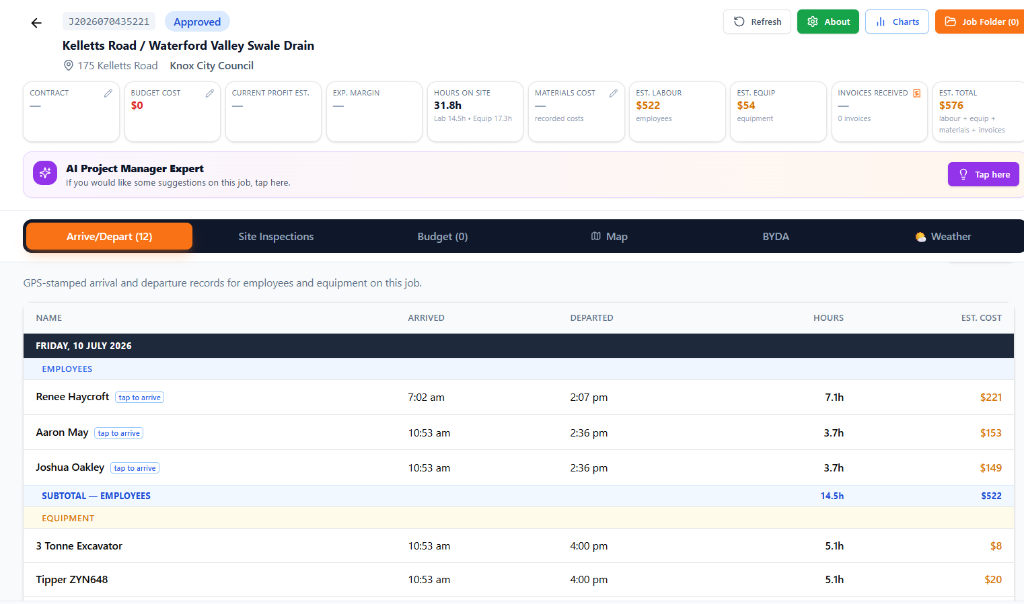
Times on-site
Arrival and departure records show labour and equipment hours against the job.
Live costs
Labour, equipment, materials, invoices, and estimates help Admin monitor budget pressure early.
Single job view
Tabs keep inspections, budget, map, BYDA, weather, and AI support connected to the job.
Use this workflow when a job needs to be connected to a different contact/entity while preserving the job record and its operational history.
Important: substituting a job contact should not be used to delete or recreate a job. It keeps the existing job, documents, photos, arrive/depart records, costs and communications connected while changing the contact/entity relationship used going forward.
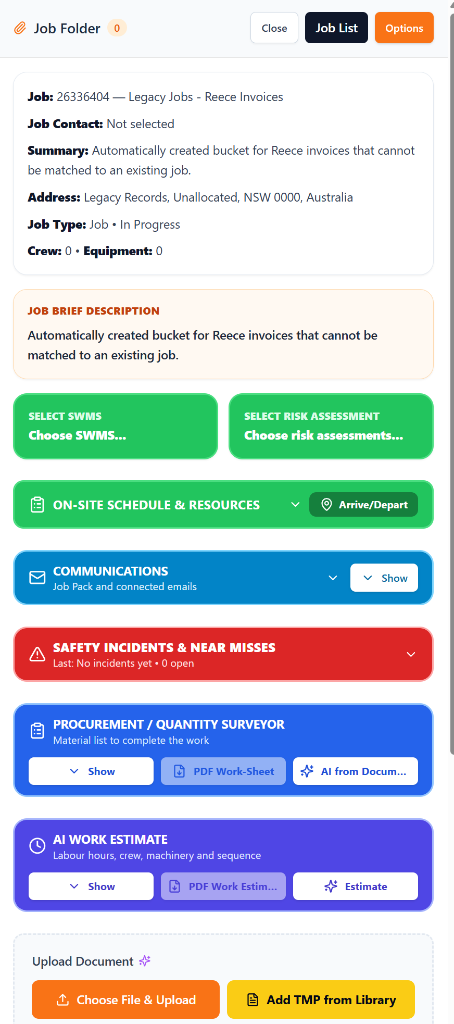
Job Folder review
Open the Job Folder first to confirm the current job number, contracted party, summary, address and operational panels before changing the contact/entity connection.
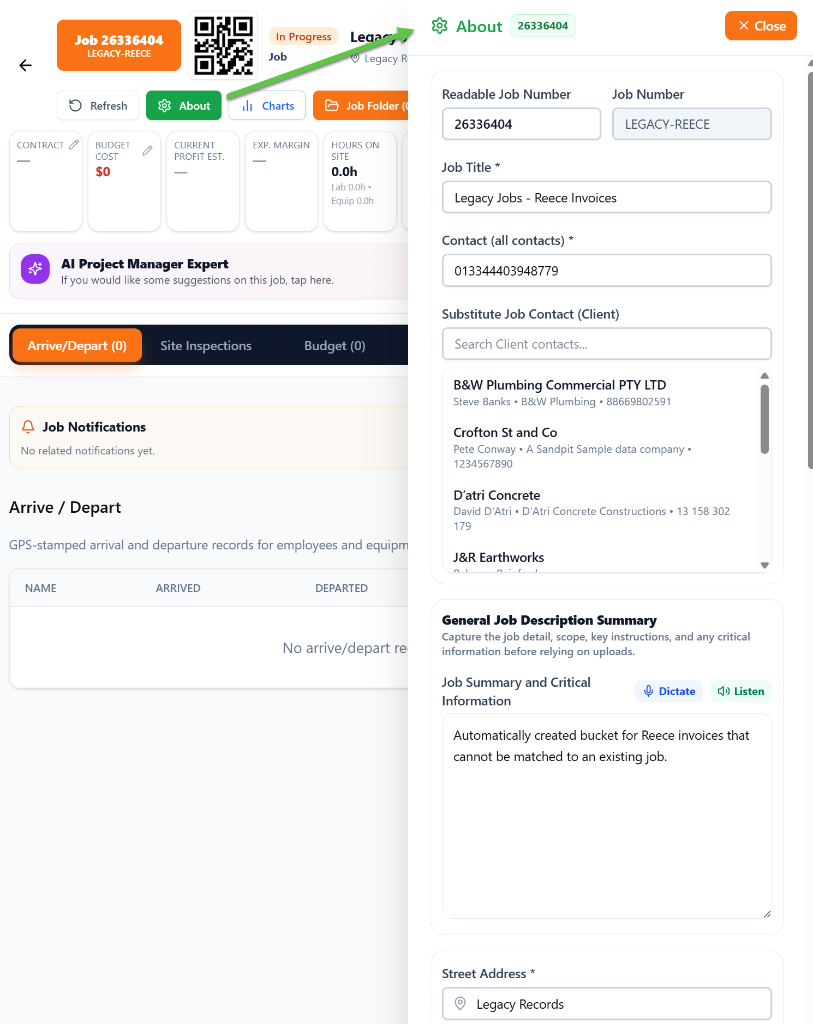
About panel substitution
Use About to open the editable job details, then search the Substitute Job Contact list and choose the correct contact/entity for the job.
The Job Folder is the live delivery console for a job after creation: it collects the records, evidence, safety documents, communications, procurement, AI estimates, and handover material needed to manage the work properly.
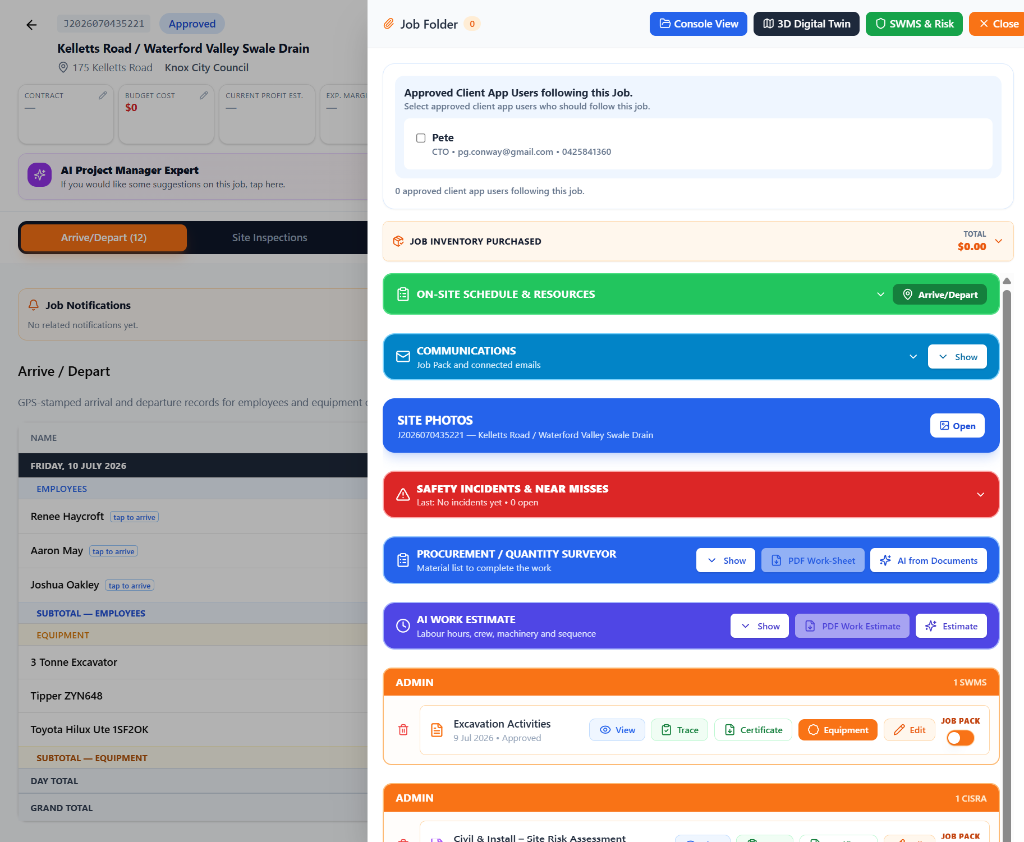
Everything connected
Photos, SWMS, procurement, AI estimates, communications, inventory, client followers, and contractor access stay tied to the job.
Better handovers
Supervisors and Admin can review job status without rebuilding the story from separate screens.
Compliance ready
Safety, evidence, trace logs, certificates, and job pack controls stay close to the operational record.
SWMS and CISRA documents now default into the Job Pack, with trace-log certificate options for PINS maps, document detail, app viewing and paper transition confirmations.
Job Pack default
SWMS/CISRA safety documents should already be available to crew from the Job Pack.
Trace and alert
Admin can review who has viewed the document, alert missing crew and record paper confirmations.
Certificate options
Certificates can include the PINS map, document detail and trace register evidence.
SWMS and CISRA records are included in the Job Pack by default so crew can access the required safety documents from the app.
The Job Pack toggle on each SWMS/CISRA card confirms whether that document is included for the job.
Trace opens the SWMS / Risk Assessment Trace Log so Admin can review who has viewed the required document.
Trigger Alert notifies crew who are recorded on site but have not yet viewed the SWMS/CISRA in the app.
Confirm Paper Compliance is available during the transition period for crew who completed the paper review before fully moving to app acknowledgement.
Certificate PDF produces the compliance certificate from the trace log, paper confirmations and selected certificate options.
PINS Map
Adds the job map and GPS-stamped site photo pin evidence to the generated certificate.
Document Detail
Adds the screen-style SWMS/CISRA detail view so the certificate shows what the document contained.
Paper confirmations
Adds selected paper compliance confirmations to the trace register during the transition from paper to app use.
PDF download
Open the certificate preview, then use the PDF toolbar download button to save the final certificate.
Crew transition rule: crew need to read the SWMS/CISRA, complete the equipment inspection each day, and tap Arrive and Depart in the app each day. These are regulatory compliance requirements, not optional internal preferences.
Source update and screenshots
The attached Outlook PDF is embedded here so the original screenshots remain available in Resources.
Use the high-resolution DBYD PDF response pack as the single source for Job Folder utility plans. The app stores an authority index on import so Crew can tap directly to the relevant item in the mobile viewer.
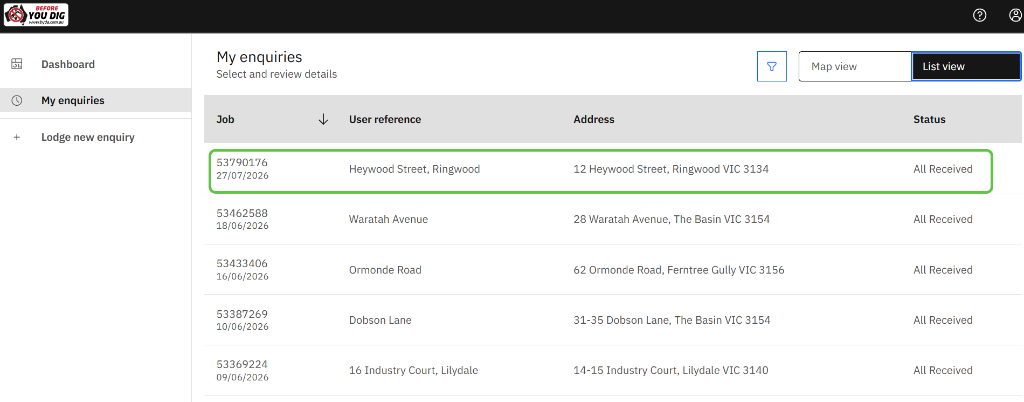
1. Select the enquiry
Open the correct job/enquiry in BYDA before downloading.
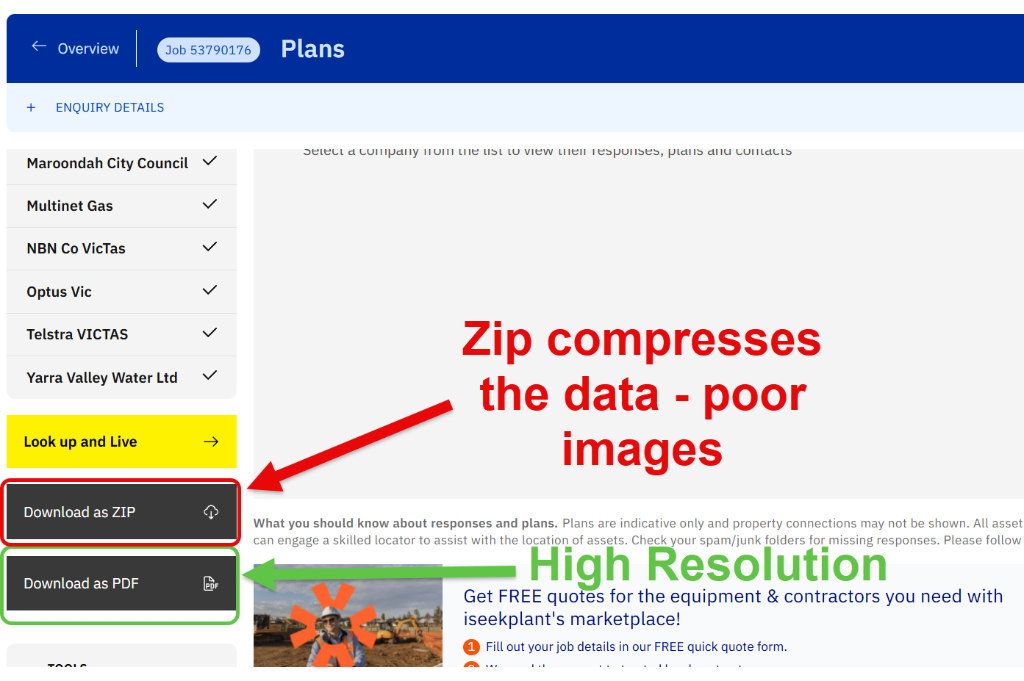
2. Download as PDF
Avoid ZIP packs because they compress plan images and reduce site usability.
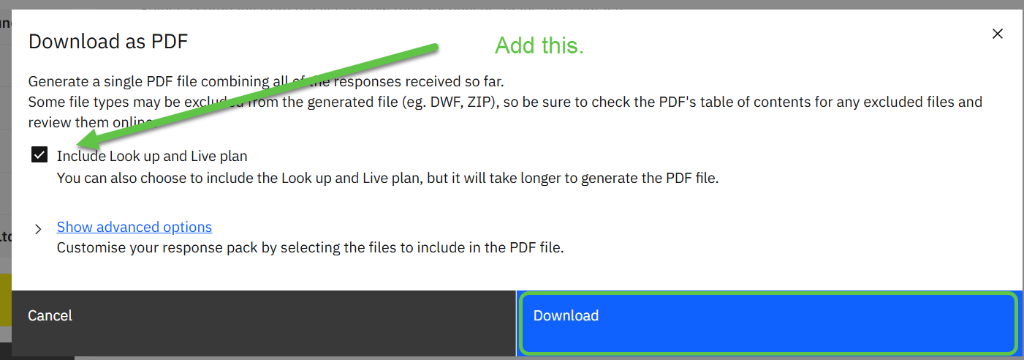
3. Include Look up and Live
Tick the option before downloading the PDF response pack.
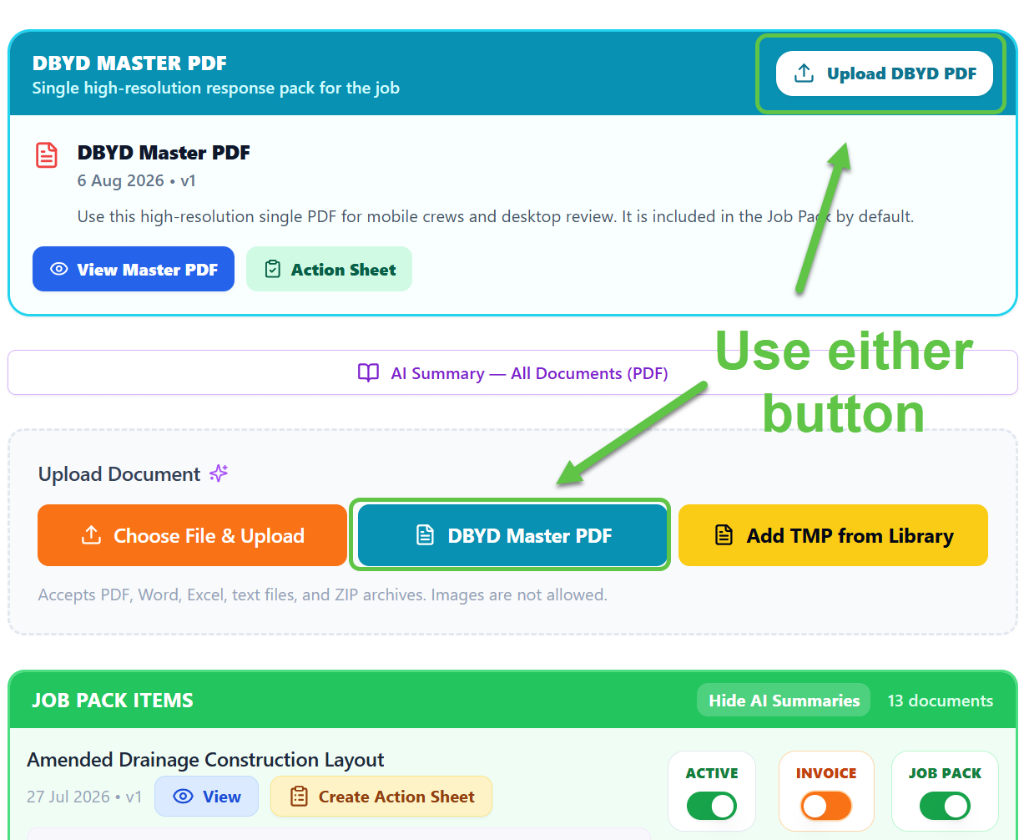
4. Upload DBYD Master PDF
Either DBYD Master PDF button stores the pack and makes it available to Crew.
In the BYDA portal, open My enquiries and choose the correct job/enquiry record before downloading the pack.
Use Download as PDF, not Download as ZIP, because the ZIP compresses plan images and produces poor mobile viewing quality.
Tick Include Look up and Live plan before downloading so electrical awareness is included in the single response pack.
Upload the downloaded high-resolution PDF through either DBYD Master PDF button in the Job Folder; this marks it active and includes it in the Job Pack by default.
At upload, the app reads the PDF authority table and stores a DBYD Index so Crew can tap an authority or item and jump straight to its page on small screens.
The mobile document viewer now uses pinch zoom with a virtual canvas and 100% zoom steps so large DBYD plans can be inspected without being squeezed to the phone width.
Job Media is the Admin evidence gallery for reviewing job photos, selecting shareable references, producing PDF reports, opening map views and playing a controlled presentation for clients or internal review.
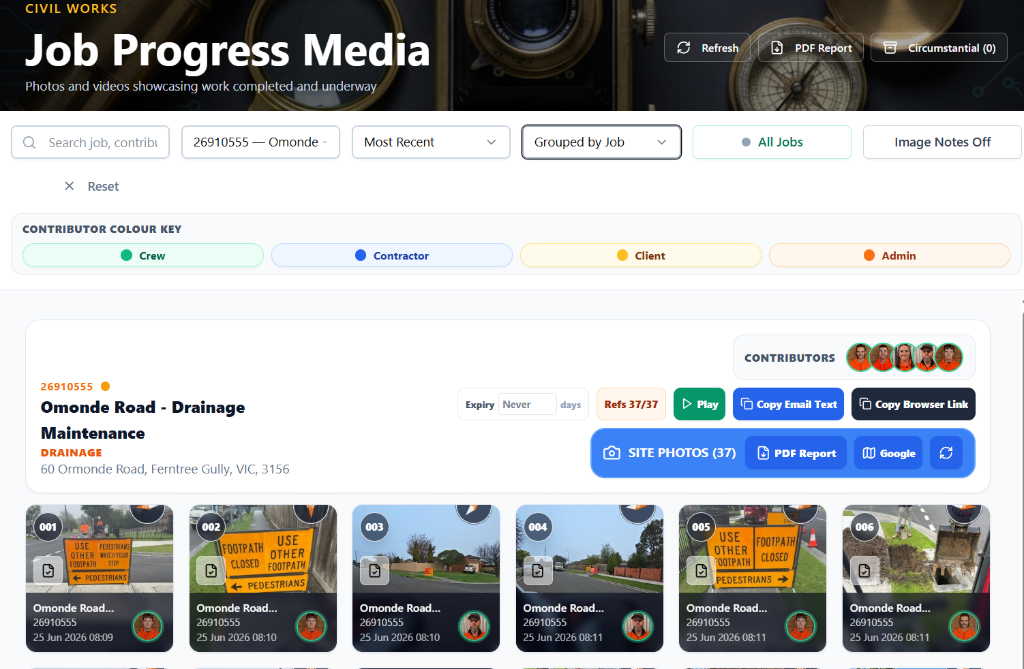
Job Media controls
Search filters the gallery; the Job dropdown selects one job and switches to Grouped by Job; the date dropdown changes Most Recent or Older order; the view dropdown switches Timeline and Grouped by Job; All Jobs / Live Jobs limits to live sites; Image Notes shows only photos with notes; Reset clears the filters.
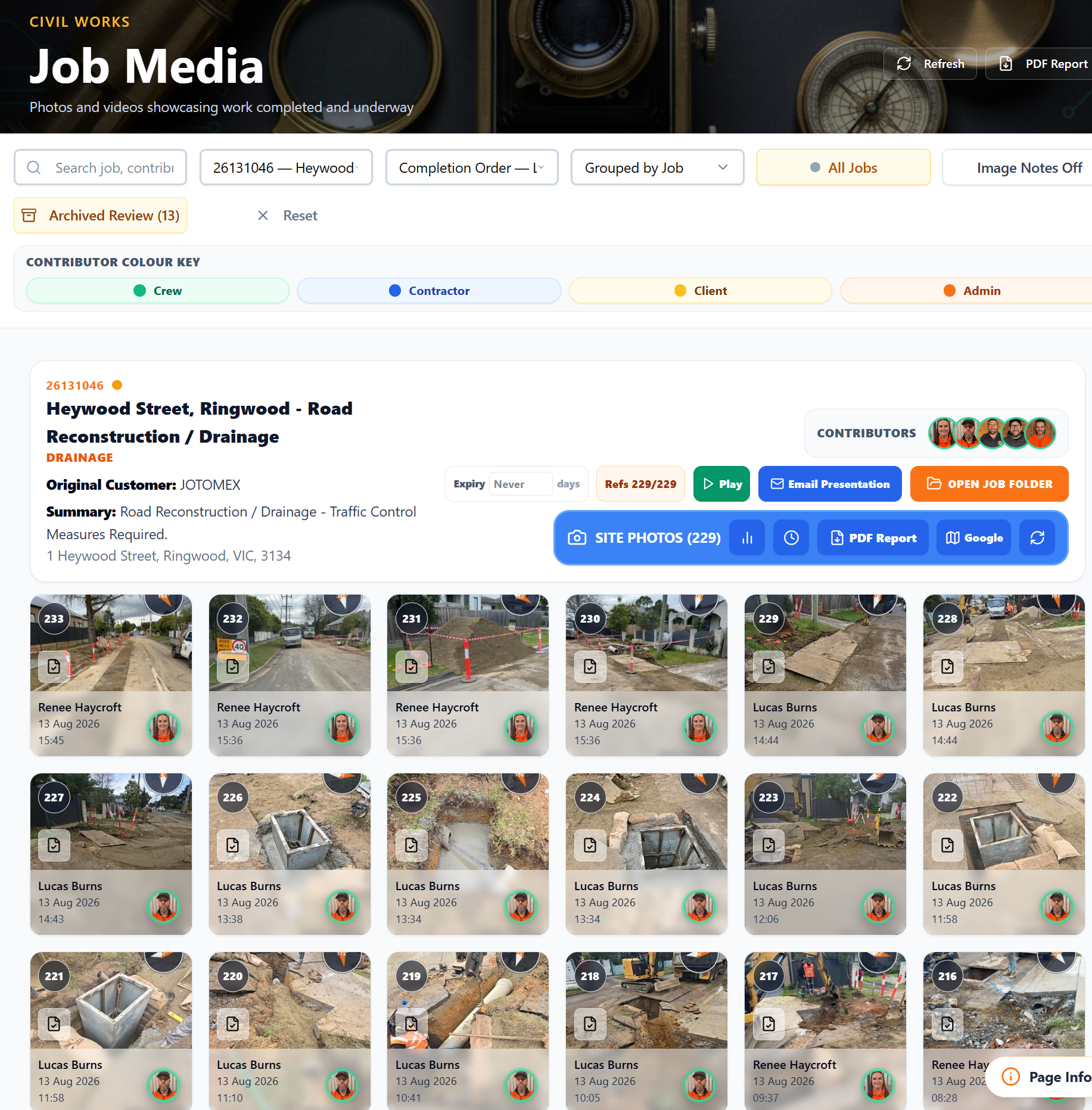
1. Reveal archived images
Use Archived Review to switch Job Media from the active evidence set to archived/circumstantial images for admin review.
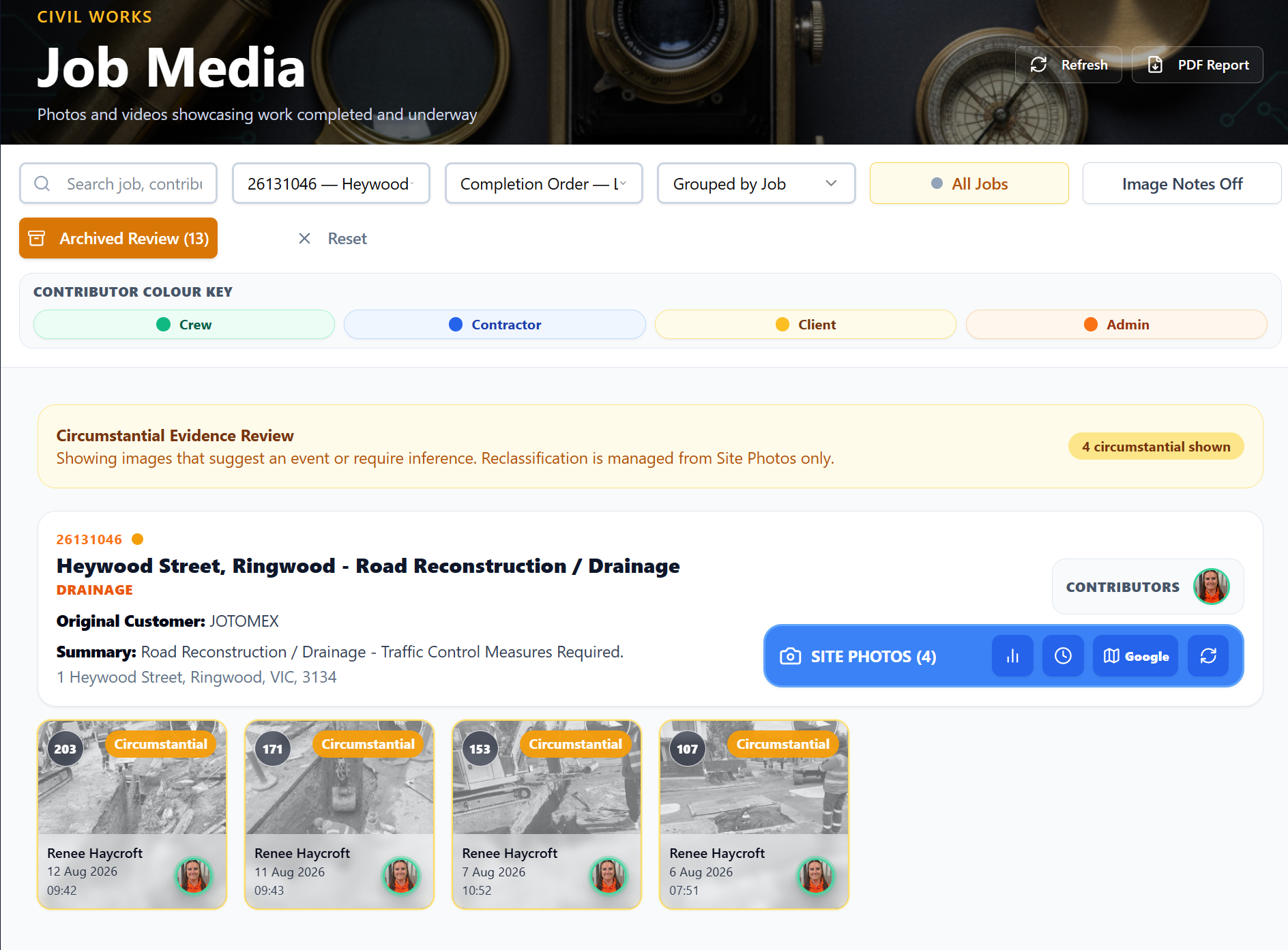
2. Review archived evidence
Archived images display dimmed with a Circumstantial label so they remain in the record without appearing in normal presentations or PDF reports.
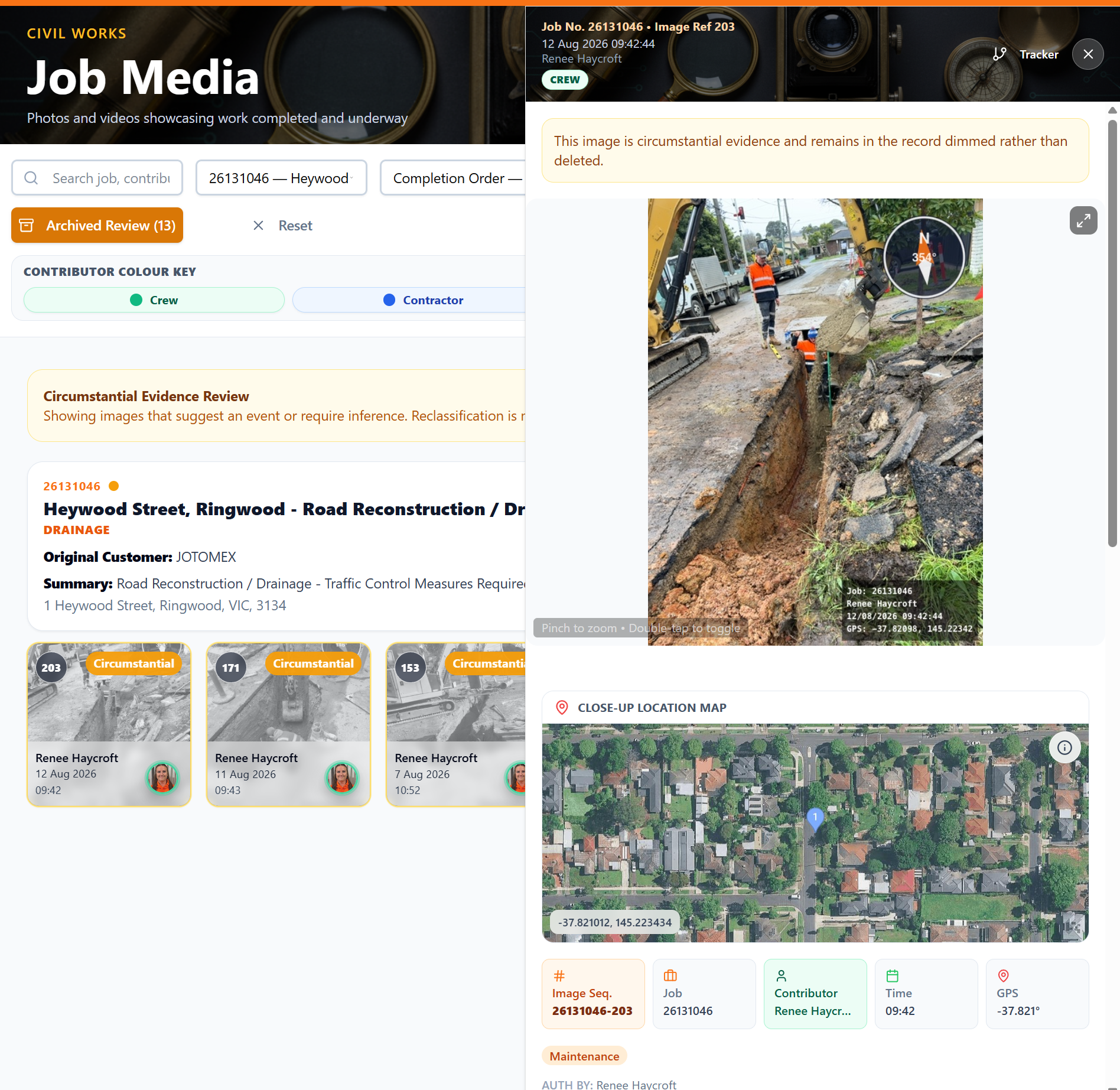
3. Reset from Site Photos
If an archived image should return to the active evidence set, reset or reclassify it from the Site Photos page rather than from Job Media.
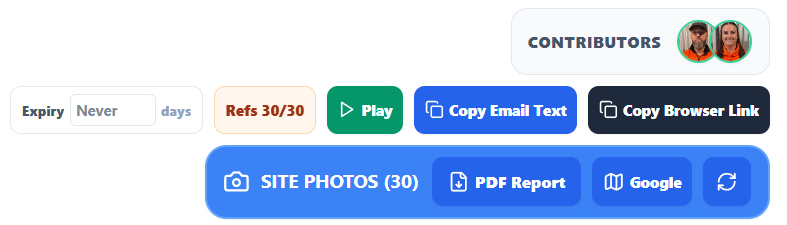
Job action buttons
Expiry sets how long the public presentation link remains available, Refs controls which image references are shared, Play opens the presentation, Email Presentation sends the share email, PDF Report builds the evidence PDF, Google opens the map and Refresh reloads photos.
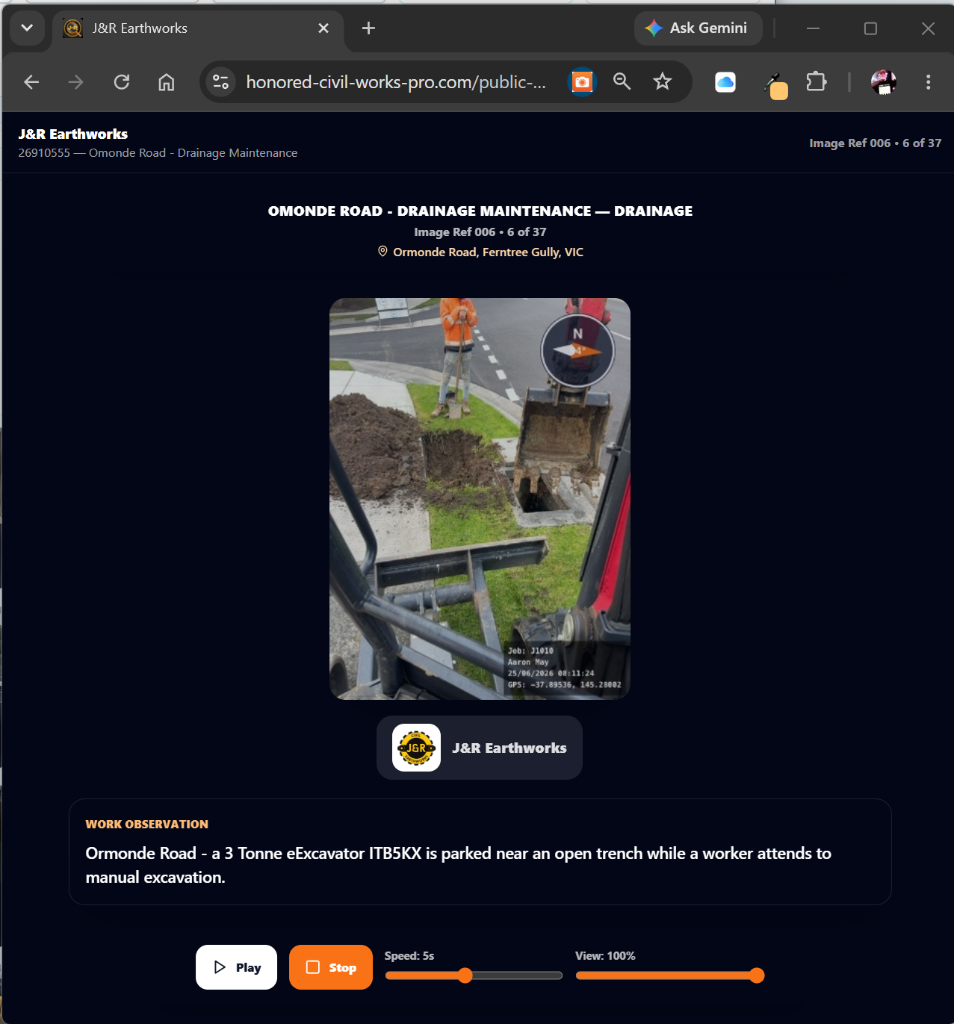
What shared links open
Email Presentation creates a shareable public presentation link. The recipient opens a branded player showing the job label, current image reference, location, selected image, work observation, Play/Stop controls, Read Commentary, speed and view-size controls.
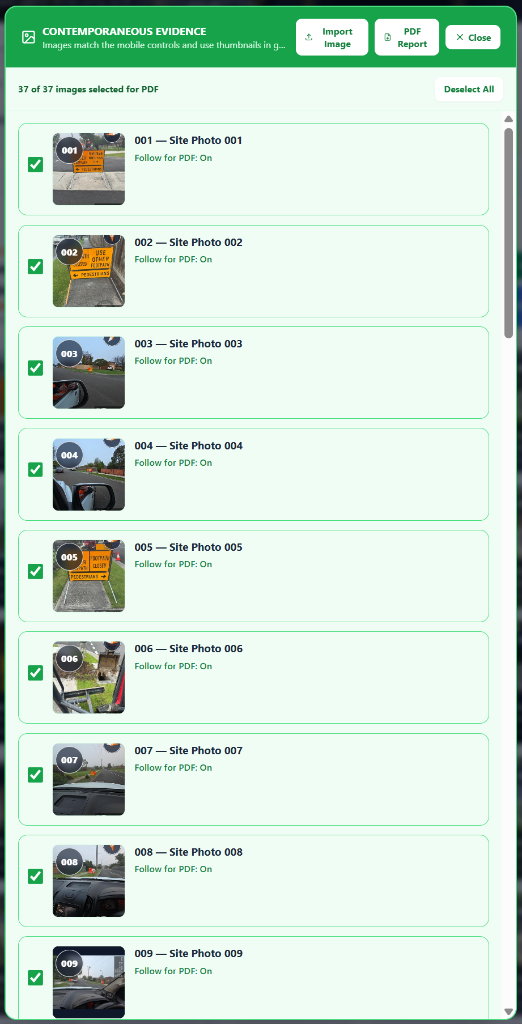
Contemporaneous Evidence panel
Ticked images follow into the PDF. Deselect All clears the selection, PDF Report opens title and gallery-density choices, Close exits, and Import Image adds a missing image where required.
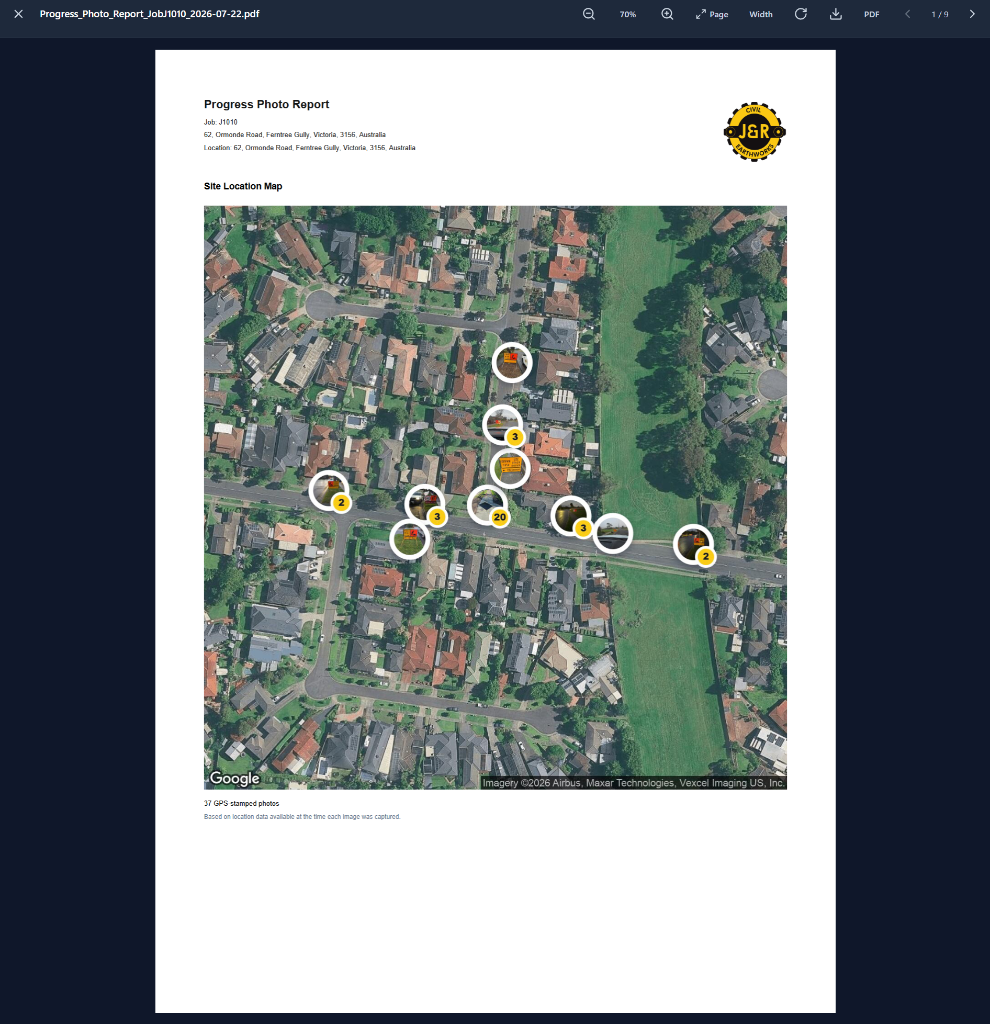
PDF report viewer
The viewer toolbar closes the report, zooms out/in, shows the zoom percentage, fits the page, fits the width, refreshes rendering, downloads the PDF and moves through pages with the previous/next arrows. The report map uses satellite imagery with thumbnail cluster pins and count badges.
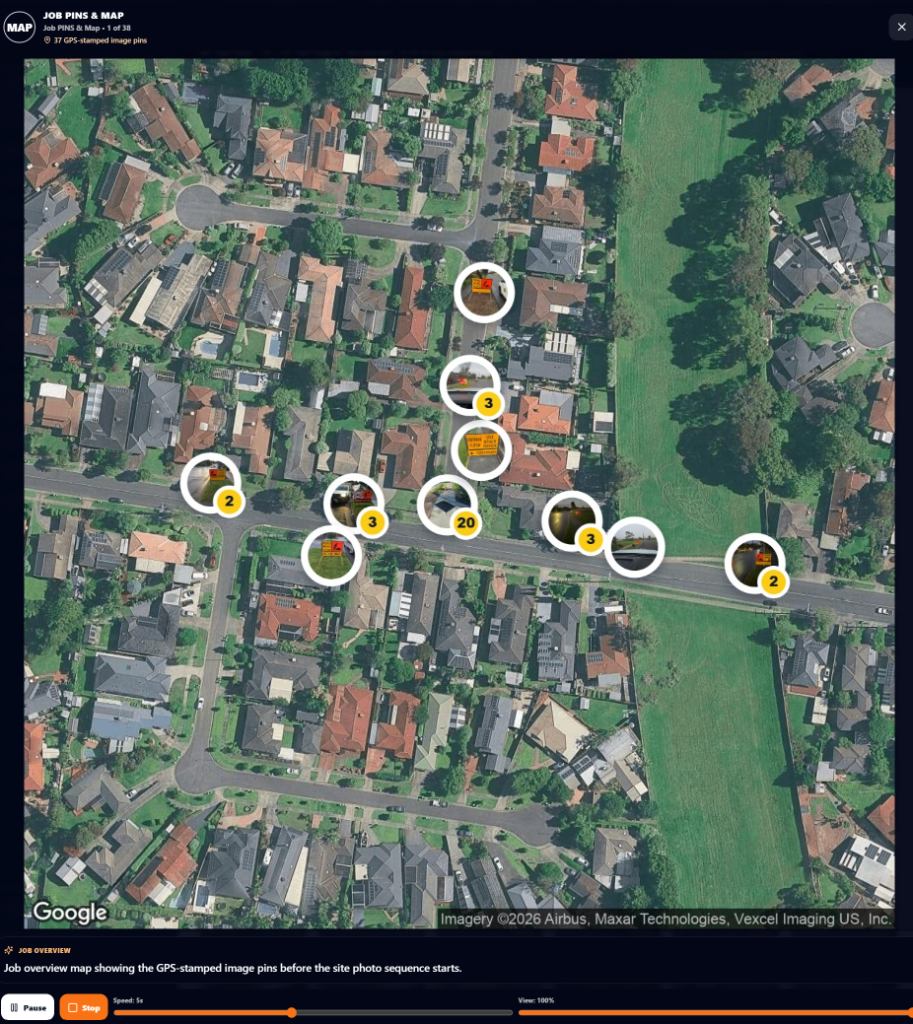
Player — Job PINS & Map first slide
When a job presentation has GPS-stamped photos, the Player begins with a satellite Job PINS & Map overview. The thumbnail cluster pins and count badges show where the selected evidence images were captured before the viewer moves into the individual photo sequence.
Dropdowns and filters
Search, Job, date order, display mode, Live Jobs, Image Notes and Reset control what appears in the evidence gallery.
Sharing controls
Refs, Expiry, Play, Email Presentation and Read Commentary prepare a client-ready presentation selection.
PDF controls
PDF Report opens the Contemporaneous Evidence selection flow before producing the progress report.
Imported images
Imported images are treated as circumstantial because they were not captured live through the mobile site workflow, so they support the record but require context.
Notes in PDFs
Include Notes in PDF remains an internal/Admin option only; it is hidden from Client and Contractor report options because notes may contain internal business details.
Viewer options
The PDF viewer supports close, zoom, fit page, fit width, refresh, download and page navigation controls.
Timesheets are the employee work-hour record, while Timesheet Reports are the Admin review view used to check hours, jobs, overtime, payroll readiness and supporting evidence.
Employee Timesheets
Capture the person, job, date, clock-on, clock-off, breaks, notes and approval status.
Timesheet Reports
Review weekly hours, job rows, overtime, costs, approval status and payroll readiness.
Evidence check
Compare submitted hours with Geofence arrival/departure records for payroll confidence.
Employee Timesheets are the daily work-hour records used to capture the employee, job, date, clock-on time, clock-off time, breaks, notes and status.
Timesheets should be reviewed before payroll so submitted mobile records become approved work-hour evidence rather than unchecked field entries.
Timesheet Reports give Admin a payroll review view across employees, weeks, jobs, hours, overtime, costs and approval status.
The Week by Person view helps review each employee across the week, including multiple job rows when one person works across more than one site in a day.
Timesheet Reports can be compared with Geofence Logs so Admin can check whether submitted work times line up with arrival and departure evidence.
Exports and report views support payroll review, job costing, dispute checks, audit history and handover to payroll preparation.
Geofence watches whether crew are inside or outside a job site boundary. It records arrival and departure evidence that supports Timesheets, payroll review, job costing and audit checks.
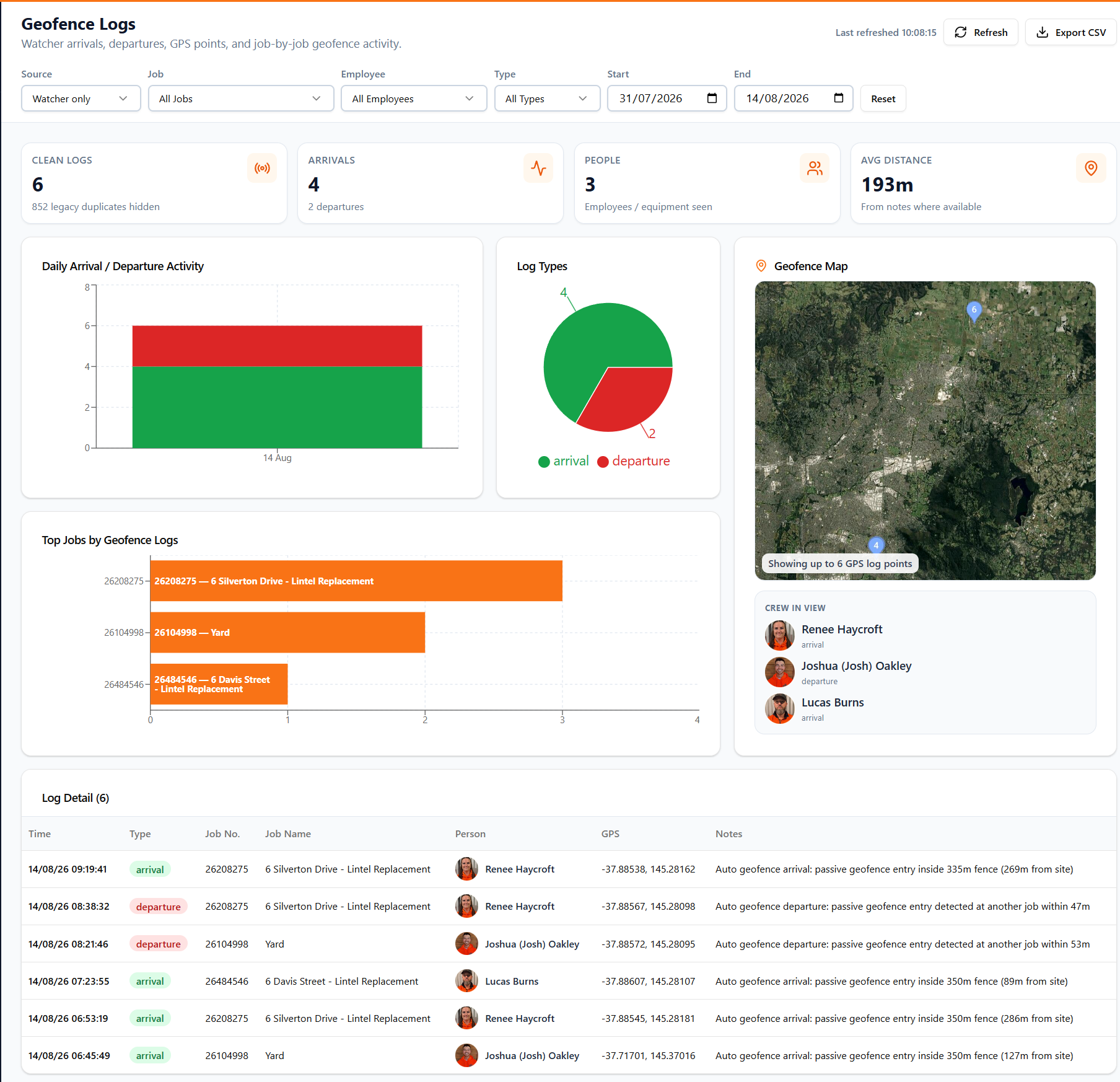
Geofence Logs dashboard
Admin can filter by source, job, employee, type and date range, then refresh the evidence, export CSV, review charts and inspect the detailed arrival/departure rows.
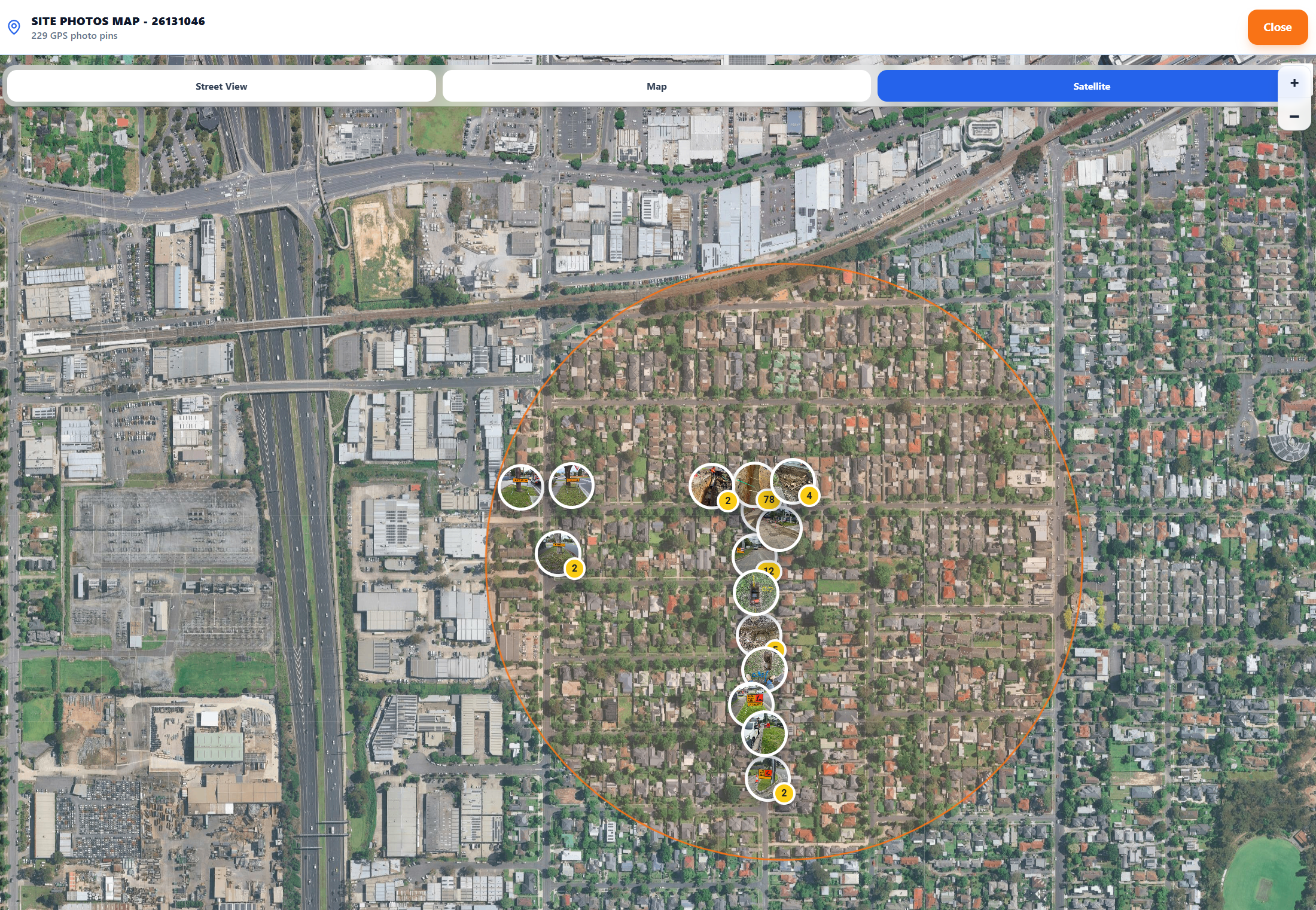
Map evidence
Map views help Admin see where site activity and GPS evidence sits around the job area before comparing that evidence with Timesheets.
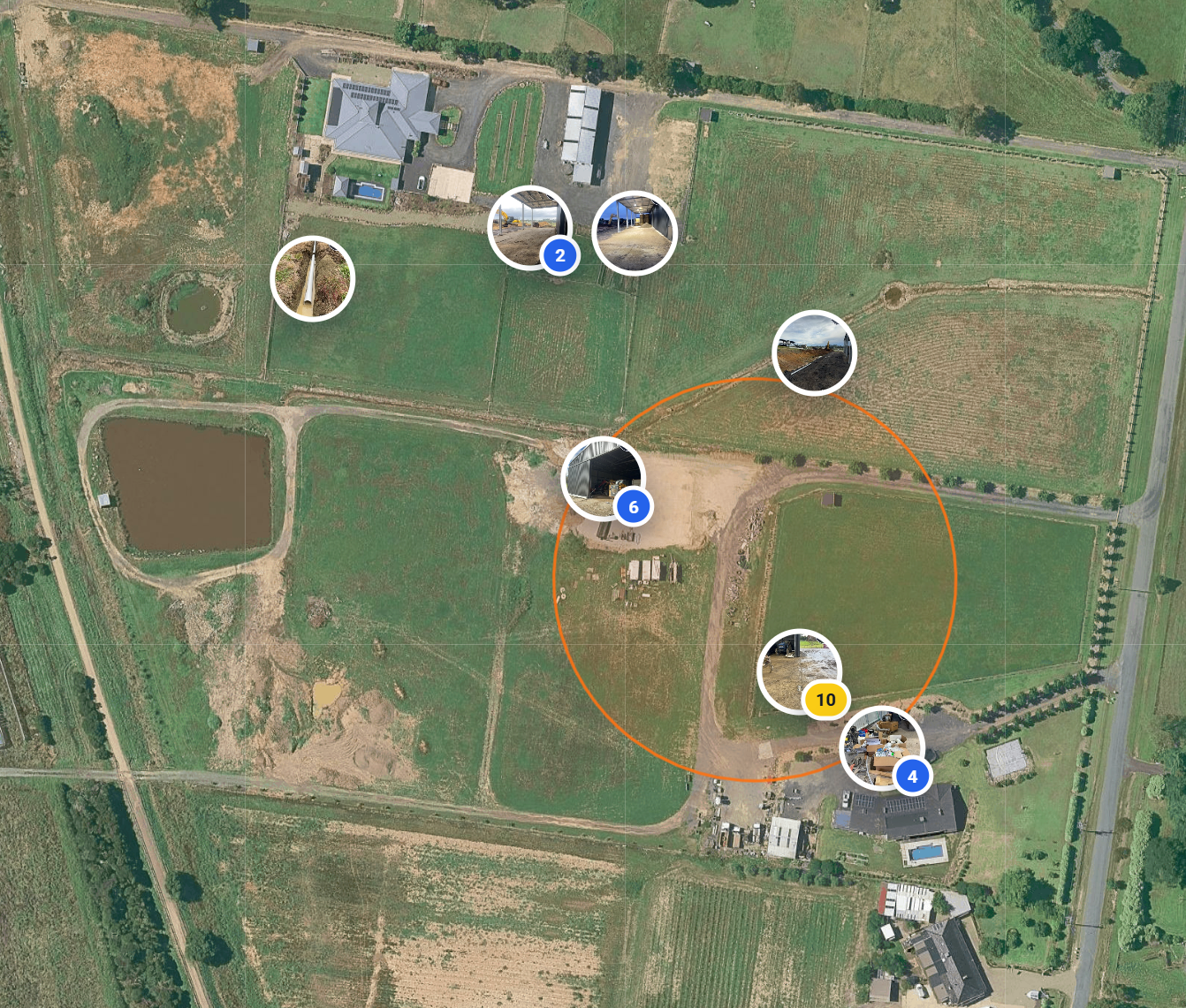
Scalable geofence zone
A tight target can be useful for confirming the intended work area, but low mobile coverage and GPS drift can place legitimate job photos outside the circle. The zone should be scaled to balance accuracy with practical field reliability.
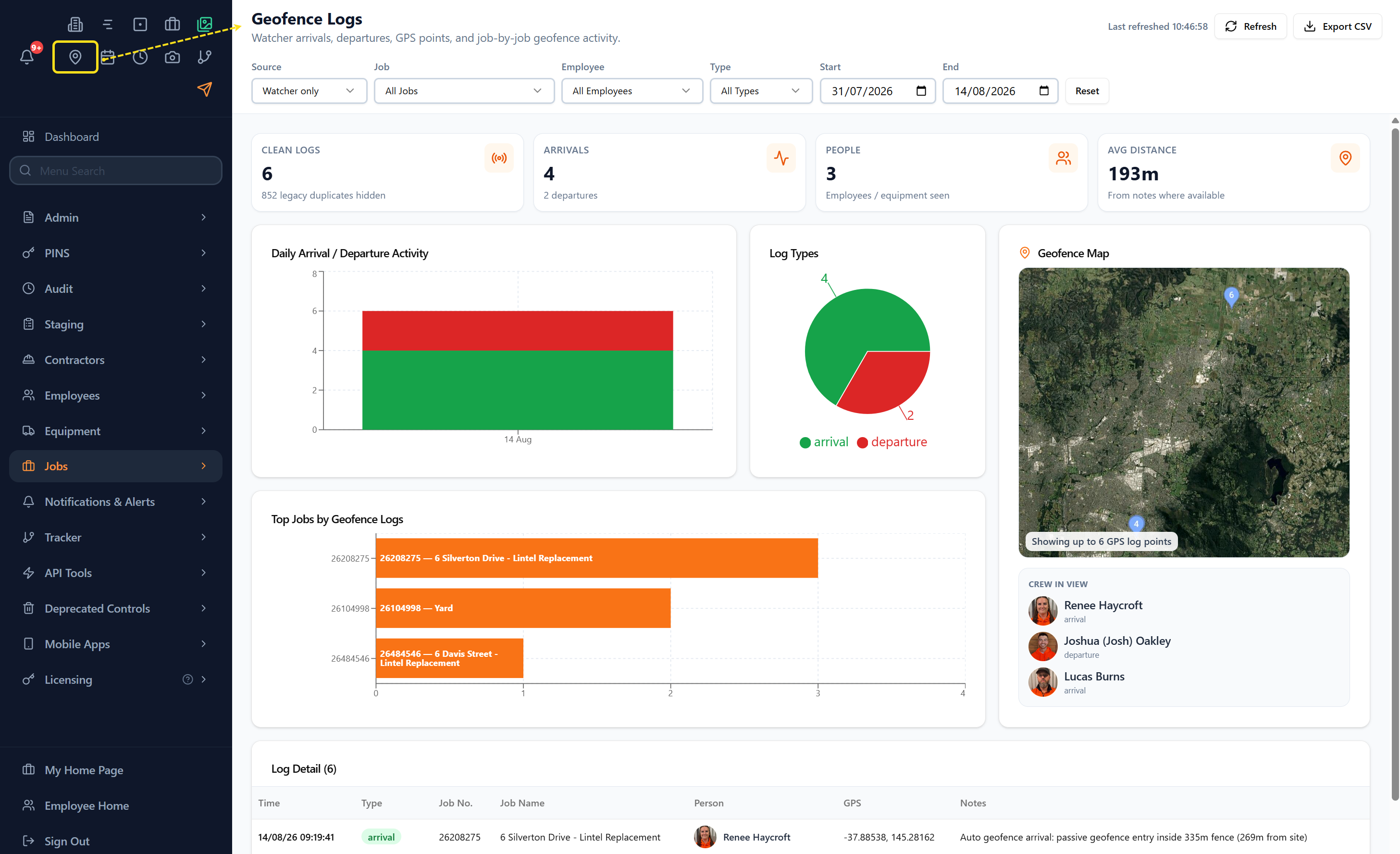
Quick link access
The sidebar quick links now include a Geofence Logs icon so Admin can jump straight to the live arrival and departure evidence view.
Arrival evidence
A green arrival record shows a person entered the job boundary, with time and GPS details.
Departure evidence
A red departure record shows the person left the boundary or moved to another detected job area.
Timesheet support
Timesheets remain the payroll record; geofence records support them as location and timing evidence.
The geofence radius is scalable because real GPS evidence has to balance precision with field reliability.
A tight zone such as 72 metres can confirm the intended work area accurately, but photos and mobile checks may drift outside it in low-coverage areas.
Rural sites, weak mobile coverage, device sleep and delayed GPS fixes can place legitimate job photos outside the visible target zone.
Admin should size the zone to capture the practical work area plus a reasonable GPS drift buffer, rather than treating the smallest possible circle as the safest setting.
If many genuine job photos sit just outside the target, enlarge or reposition the scalable zone and note the reason in the job review context.
Live Crew in View means currently open arrivals only. If this area is empty, the map is showing historical evidence selected from the log rows, not someone currently on site.
When the watcher receives a GPS response outside the job where a person is currently recorded as arrived, it should record a departure for that open job first.
If the next watcher check, normally about 15 minutes later, still places the person inside another job boundary, a new arrival can then be recorded and continuity can be assumed.
A departure GPS label that says it was detected at another job should be read as evidence that the previous open arrival was closed when the worker was next detected elsewhere.
This scenario should be uncommon during normal polling, but can still happen after missed phone checks, app sleep, lost location permission, no signal, or an old open arrival from a previous visit.
Jobs that are very close together or have overlapping geofence areas can create genuine boundary ambiguity; otherwise the cross-job note is usually an interpretation note, not proof that the original site coordinates are wrong.
Geofence evidence supports review, but Admin should compare it with timesheets, job notes, photos, inspections and worker context before making payroll or dispute decisions.
Geofence creates a digital boundary around each job site using the job location and radius.
When a crew member enters the boundary, the app can record an arrival with the person, job, time and GPS position.
When the crew member leaves the boundary, the app can record a departure so Admin can see the on-site time window.
Geofence Logs are the evidence view: they show arrivals, departures, people in view, GPS points, map locations, slow-bouncing overlapping crew pins, charts, filters, Refresh, Export CSV and the last refreshed time.
The Log Types chart now includes a simple legend showing arrival and departure totals, so the green and red slices are clear at a glance.
Timesheets are the payroll/work-hour record; geofence entries support those timesheets by showing whether the person was actually near the job site at the recorded times.
Timesheet Reports combine payroll review with geofence evidence, helping Admin compare submitted hours against arrival/departure activity by person, day and job.
If someone works across multiple jobs in one day, job-specific arrival and departure pairs help separate the day into the correct job records.
Geofence evidence helps with payroll confidence, site attendance review, job costing, dispute checks and audit history.
This report helps Admin confirm whether equipment that was scheduled or active on a job has had the required inspection completed, with period filters, inspection-state filters, employee/equipment breakdowns, expandable charts and PDF export.
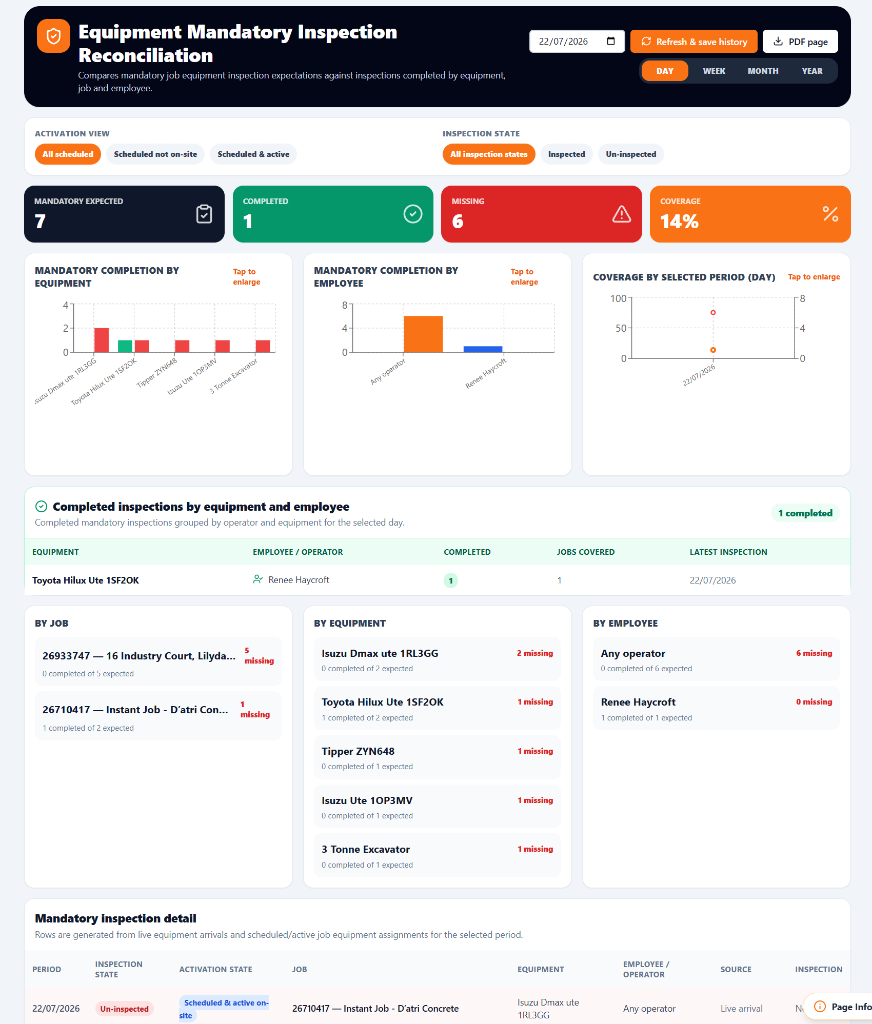
Reconciliation dashboard
Use the date and day/week/month/year controls to choose the reporting period, then filter by activation state and inspection state to isolate completed or missing inspection obligations.
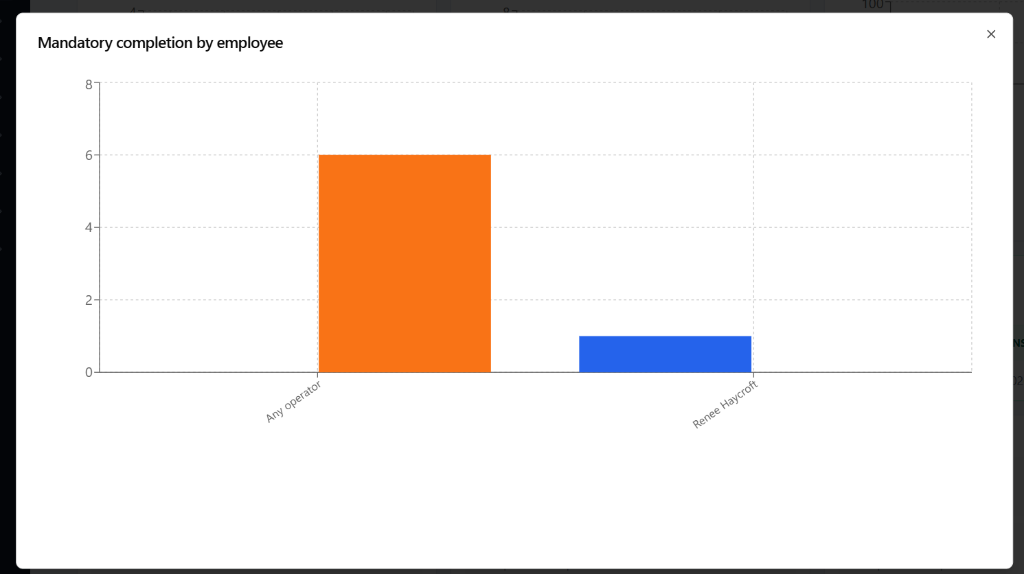
Tap to enlarge charts
Each chart can be opened in a larger modal so employee, equipment and period results are easier to review during reconciliation meetings.
The report compares mandatory equipment inspection expectations with completed inspection records by selected day, week, month or year.
Activation filters separate All scheduled, Scheduled not on-site, and Scheduled & active records so Admin can see whether a missing inspection belongs to planned work or live on-site activity.
Inspection state filters switch between All inspection states, Inspected and Un-inspected, making it easier to isolate completed records or missing obligations.
Summary cards show Mandatory Expected, Completed, Missing and Coverage percentage for the selected period.
Charts break completion down by equipment, by employee/operator, and by selected period; tapping a chart opens a larger view for easier reading.
The Completed inspections table groups actual inspections by equipment and operator, showing jobs covered and the latest inspection date.
The By Job, By Equipment and By Employee panels show where the missing inspections sit, including Any operator rows when the expected inspection is not tied to one named employee.
Refresh & save history reloads the live reconciliation and stores a history snapshot; PDF page exports the current reconciliation view for reporting.
The Planner Whiteboard turns jobs, crew, equipment, documents, and planning notes into a shared visual workspace so supervisors can see the work before it reaches site.
See the whole job
Group job cards, documents, notes, safety signs, and project sequencing on one board.
Plan crew visually
Place crew and equipment beside jobs to confirm coverage, clashes, and resource pressure.
Share the plan
Export the board as a PDF for handovers, pre-starts, client discussions, and planning records.
The mobile app captures the employee’s work activity close to real time, then Admin reviews and approves those records before they are used for pay slip preparation.
Employee records time
Mobile job activity captures the day, job, times, notes, breaks, and lunch status.
Admin approves hours
Approved timesheets confirm ordinary hours, overtime, RDO treatment, and allowances.
Payroll uses approved data
Pay slips should be prepared from reviewed records, not unapproved mobile entries.
Sender is the controlled communication hub for formal app distribution. Email workflows that were paused while AWS sending was disabled are now documented as active pathways again, with Admin review still required before external messages are sent.
Sender is now the central place for distributing documents, form links, onboarding links, compliance plates, insurance policies, company documents and other formal app material.
Recipient selection is grouped by Employees, Suppliers, Professional Advisors, Customers and Xero Contacts so Admin can choose the right audience before sending.
Email-enabled workflows that were previously held back while AWS sending was disabled are documented as active again: Sender, employee onboarding links, client/sign-off emails, job pack emails, form links, dispatch and inspection emails.
For launch control, Admin should still confirm each recipient list, attachment selection and template before sending because these are formal external communications.
The Employee Onboarding screen now supports emailing an onboarding link directly, while the submitted applicant card remains visible for review and audit follow-up.
The Order Number is the short field-friendly reference used beside the QR code. It gives crews, suppliers and Admin a readable value to quote, while the QR code gives a fast scan option using the same simplified job reference.
The job list now shows the readable Order Number beside the QR code so crews, Admin and suppliers can quote the same short reference when ordering materials, booking resources or discussing site work.
The QR code stores only the simple job reference/order number rather than a long internal database ID, making scanning and manual reading easier in the field.
Desktop Jobs keeps the Order Number and QR code side by side so office users can verify the printed or shared reference quickly.
Mobile Job Pack now uses a lighter QR code treatment so the code is available for scanning but no longer dominates the job list.
The Live Jobs filter shows the current live-site list when active jobs are underway, including readable Job No. references, status chips, job type labels and the green live indicator.
Why show Order Number? It avoids relying on long internal IDs, reduces phone/radio confusion, and keeps ordering, scheduling, QR scanning and job lookup aligned around one practical reference.
These screenshots show the current rollout points: lighter mobile QR codes, desktop QR and Order Number pairing, Sender recipient grouping, and email onboarding link review.
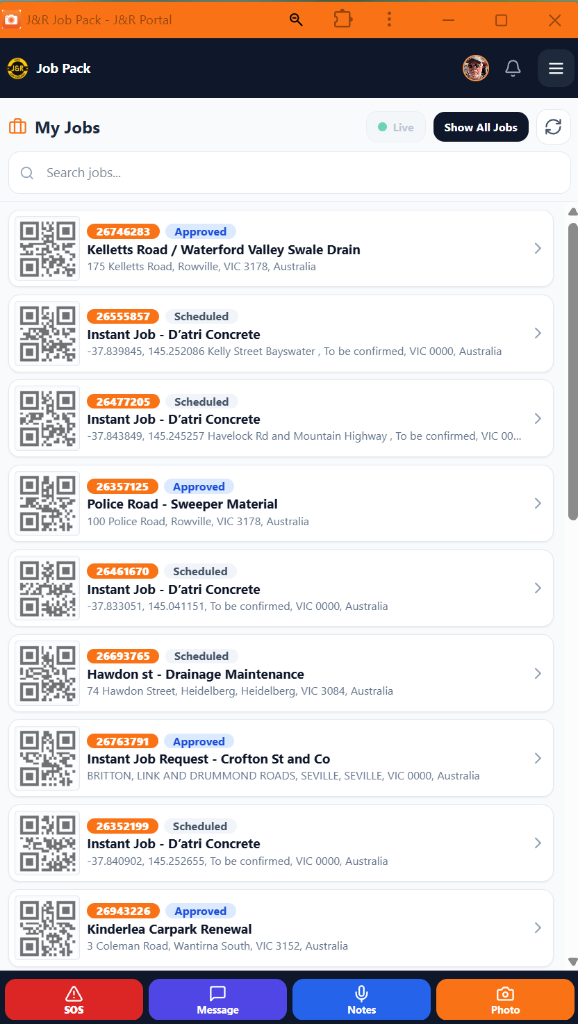
Mobile Job Pack
Lighter QR codes keep scanning available without overpowering the job list.
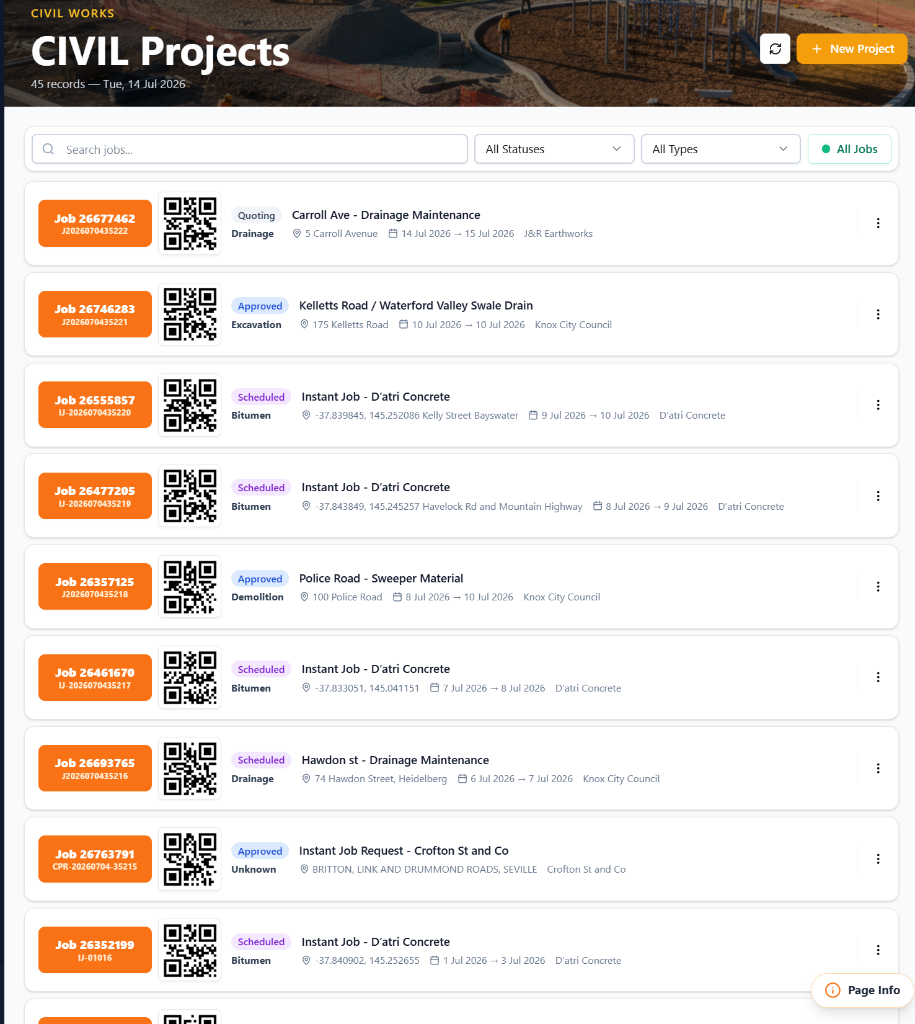
Desktop Jobs
Order Number and QR code are shown together so office and field teams use the same reference.
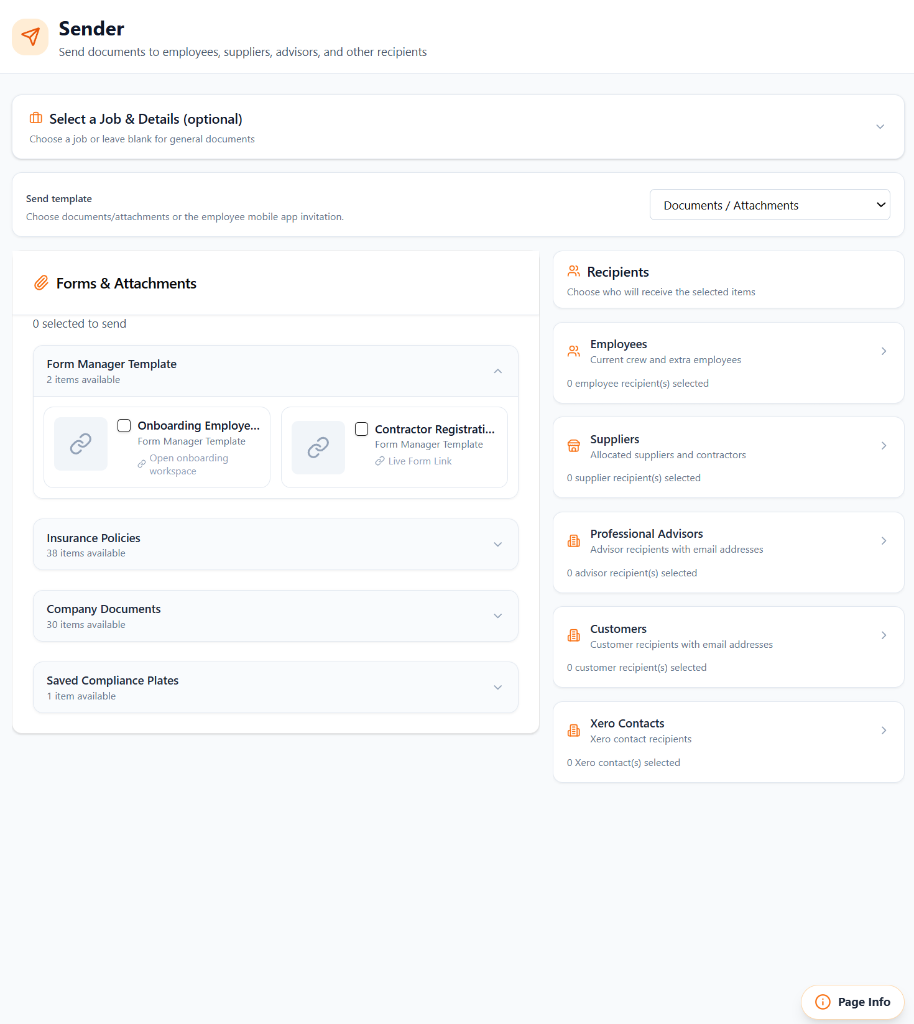
Sender
Sender groups documents, forms and recipient types before formal email distribution.
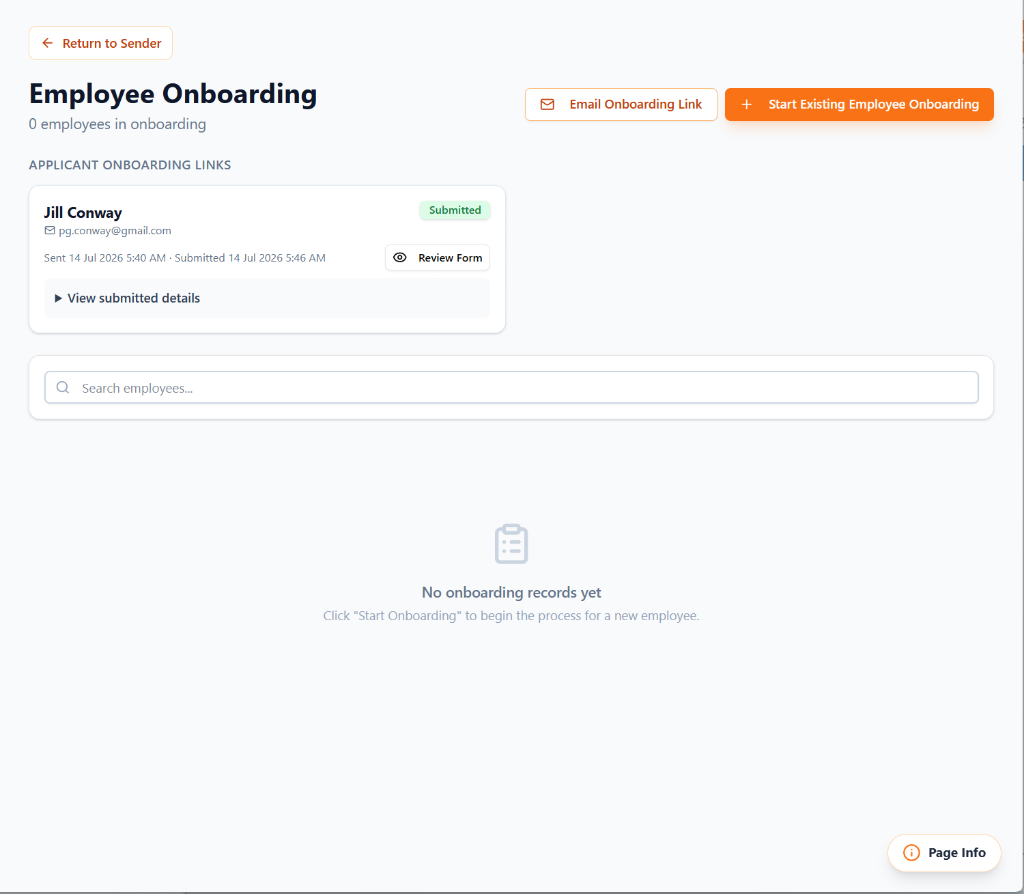
Employee Onboarding
Onboarding links can be emailed directly while submitted forms remain available for review.
Internal handover
A practical summary for Bec, Matt, and Admin showing what the system now handles and where staff can manage their own records.
Daily timesheets are generated for employees, with hours, job allocation, payroll notes, approvals, and desktop visibility.
Workers can update personal details, emergency contacts, employment information, compliance details, and notification preferences.
Job information, site notes, photos, yard records, and issue chats are captured where the work happens instead of being held in one place.
Admin can review, approve, export, compare against payroll or Xero, and manage exceptions without blocking field updates.
Employee preferences and job alerts help send information to the right people without every task needing manual follow-up.
Use Client Followers to encourage clients to share job information through the mobile Client Jobs Portal, keeping evidence and requests attached to the job instead of scattered across email.
1. Open the client record and confirm the authorised client users are current.
2. Add the relevant contact as a Client Follower / interested party on the job or portal request.
3. Ask the client to submit photos, notes, requests, and updates through the Client Jobs Portal on the mobile app.
4. Review incoming client information from the job record so Admin and Project Managers work from the same source of truth.
Preferred wording: “Please follow and share through the Client Jobs Portal so the whole project team can see the same information in one place.”
A page-by-page reference for the admin menu so unused, duplicated or legacy screens can be reviewed and progressively deprecated.
Core administration, client setup, communication, compliance resources and system records.
Contacts
/Customers
Manage client organisations, AI-Suggestion details, active website/social links, contacts, addresses, logos, policies, jobs and client records.
Dashboard
/Dashboard
Primary landing page for today’s activity, key alerts, job summaries, notifications, current-location hero weather and quick operational review.
Client Portal PINs
/ClientPortalAccessAdmin
Issue and manage secure client portal access for authorised client app users, including the per-PIN 2-Factor Authentication toggle that is enabled by default.
Admin PINs
/AdminPINManagement
Manage admin employee PIN access, active status and per-PIN 2-Factor Authentication for Admin App entry and PIN-controlled administration.
Client Comms
/ClientComms
Review and manage client portal requests, messages and job communication follow-up.
Resources
/Resources
Documentation hub for app processes, page guides, client rollout and internal handover material.
Communications
/Communications
Prepare, send and audit outbound email communications and templates; the Admin App Comms tab can also load communication records through the PIN-gated Admin data pathway.
Contract Schedules
/ContractSchedules
Manage contract schedule items and response schedules for tender and project requirements.
Emergency Contacts
/EmergencyContactsAdmin
Maintain emergency contacts used by staff and mobile safety flows.
Insurance Policies
/Insurance
Track insurance policies, related assets, documents and renewal information.
ISO Planner
/IsoPlannerPage
Plan ISO-related improvement tasks, compliance activities and management-system work.
Operational Rates
/OperationalRates
Maintain labour, equipment and operating rates used in costing and estimates.
Policies and Compliance
/CompanyDocuments
Store company policies, compliance documents and supporting evidence.
Professional Advisors
/ProfessionalAdvisors
Manage advisors, subcontractors, registration forms, documents and compliance details.
Project Management Plan
/ProjectManagementPlan
Build and export project management plan content for formal project delivery.
Response Schedule
/ResponseSchedule
Prepare structured response schedules and tender compliance responses.
Sender
/Sender
Central sender for distributing documents, form links, onboarding links, compliance attachments and formal emails to Employees, Suppliers, Professional Advisors, Customers and Xero Contacts.
System Settings Defaults
/EmployeeSettings
Manage default settings used across employee and timesheet workflows.
Company Settings
/CompanySettings
Manage shared logo versions, dashboard hero defaults, Job Media lazy-load batch size, hero regeneration cycle, business timezone, geofence defaults, automatic close-off time and Check Now precision behaviour.
Suppliers
/Suppliers
Maintain supplier records, contacts, documents and supplier-related notes.
Subcontractor PINs
/SubContractorPINManagement
Issue and manage subcontractor PINs, active status and per-PIN 2-Factor Authentication. PIN access alone does not give job access: Digital Induction credentials must be Cleared for Site, unless Admin records a Company-risk exemption inside the Job Folder access step.
Trade Clothing Allowance
/EmployeeTradeClothing
Track employee clothing allowance and issue history.
Trade Clothing Inventory
/TradeClothingInventory
Maintain stock levels and details for trade clothing inventory.
Trading Agreements
/AdminContracts
Manage commercial trading agreements, related parties and contract records.
Users
/Users
Review app users and their access roles.
Xero Contacts
/XeroContacts
Review imported or linked Xero contact data.
Xero Creditors
/Creditors
Manage creditor records and supplier finance references.
Audit records for deletion review and historical accountability.
External contractor registration, induction and form management.
Contractor Registration Form
/ContractorRegistrationForm
Public-facing contractor registration form for collecting compliance and business details.
Contractor Registrations
/ContractorRegistrations
Review contractor registration submissions, uploaded documents and compliance records.
Digital Inductions
/DigitalInductions
Review subcontractor digital induction submissions, document evidence and verification status. A contractor should be marked Cleared for Site before job access is issued. If Admin continues under exemption, the Company-risk warning, approval reason, missing items and access decision are recorded.
Form Manager
/FormManager
Manage custom forms and submitted records.
Employee records, access, onboarding, leave, calendars and payroll-adjacent workflows.
Employee Detail
/Employees
Maintain employee profiles, contact details, employment data, licences and documents.
Employee PINs
/EmployeePINManagement
Manage PIN access, active status and per-PIN 2-Factor Authentication for mobile employee workflows.
Employee Types
/EmployeeTypeManagement
Maintain employee type options used for classification and reporting.
Employee User Assignment
/EmployeeUserAssignment
Link employee records to app user accounts.
Employment Statuses
/EmploymentStatusManagement
Manage employment status options used in employee records.
LSV Register
/LSVRegister
Track long service leave and related register information.
Leave Taken
/LeaveTaken
Record and review employee leave taken.
Onboarding
/EmployeeOnboarding
Manage employee onboarding tasks and email onboarding links while keeping submitted applicant forms available for review.
Onboarding Templates
/OnboardingTemplates
Create reusable onboarding task templates.
PIN Access Logs
/PinAccessLogs
Review PIN login and access history.
Remuneration
/EmployeeRemuneration
Manage employee remuneration arrangements and payroll-related setup.
Timesheet Reports
/TimesheetReports
Review timesheet reporting and payroll preparation summaries.
Timesheets
/Timesheets
Review, edit and approve employee timesheets.
Worker Calendar
/WorkerCalendar
View and manage worker calendar activity.
Equipment records, inspections, maintenance and inventory.
Equipment
/Equipment
Maintain equipment records, compliance details, documents, rates and assignments.
Compliance Plate Upload
/CompliancePlateUpload
Upload and process equipment compliance plate images.
Inspections
/EquipmentInspections
Review equipment inspection records and issues.
Mandatory Inspection Reconciliation
/EquipmentMandatoryInspectionReconciliation
Reconcile mandatory equipment inspection expectations against completed inspections, with scheduled/on-site filters, inspected/un-inspected filters, employee and equipment breakdowns, expandable charts and PDF export.
Inventory
/Inventory
Manage inventory records used across jobs and operations.
Maintenance
/EquipmentMaintenance
Track equipment maintenance records and servicing.
Job delivery, planning, evidence, scheduling, safety and reporting.
Jobs
/Jobs
Central job register and foundation record for clients, sites, scope, resources, costs, status, Job Folder contractor access, desktop QR display and the short Order Number used for field reference. Before a contractor can access a job, their PIN and Digital Induction credentials must be in place and the induction should be Cleared for Site. If urgent site need requires access anyway, Admin can use a recorded exemption that clearly lists the unresolved issues and Company risk.
Job Media
/AdminContemporaneousPhotos
View date-sorted site photos, videos and evidence across jobs, using desktop gallery controls, 7-day job weather forecast, PDF Report, Google map, Player playback and contributor colour rules for badges, panels, dialogs and buttons: Crew green, Contractor blue, Client gold and Admin orange.
Arrive Depart
/OperationalMap
View operational arrival/departure location and activity records.
Crew Dispatch
/CrewDispatch
Send job dispatch information to selected crew members using the restored formal email/SMS communication pathway where configured.
Job Pack Mobile V2
/Job-Pack-Mobile-V2
Mobile job pack experience for field workers, supervisors and contractors, including Live Jobs, job type labels, thumbnail-first job evidence, compact Done tick controls, Player playback, editable evidence notes, Save controls and Dictate/Listen tools. Delete/archive controls are not available here because photos remain contemporaneous evidence.
Job Email Logs
/JobEmailLogs
Review email records connected to jobs.
AI Job Issue Chats
/JobIssueChats
Review AI-assisted issue chats raised from job workflows.
Quote Builder
/QuoteBuilder
Build job quotes, quantities and quote documents.
Reports
/Reports
Generate operational and job reports.
Safety Incidents
/SafetyIncidents
Record and review safety incidents and near misses.
Scheduler
/Scheduler
Plan jobs, events, resources and calendar activity.
Yard Events
/YardEvents
Manage yard-based operational events.
Planner - Gantt
/PlannerGantt
View job planning visually on a timeline.
Planner - Whiteboard
/PlannerWhiteboard
Plan jobs, crew, equipment, notes and documents on visual whiteboards.
Site Photos
/SitePhotos
Capture, manage and archive site photos and media records with evidence contributor colours: Crew green, Contractor blue, Client gold and Admin orange. Site Photos is the only place photo evidence should be archived.
SWMS & Compliance
/AiDocs
Create and manage SWMS, risk and compliance documents that are included in the Job Pack by default for crew access.
SWMS & Risk Images
/SignageMaintenance
Maintain safety and risk-related image resources.
SWMS Compliance Edit
/SWMSComplianceEdit
Edit SWMS compliance content and related safety details, including Job Pack inclusion for SWMS/CISRA records.
SWMS Image Library
/SafetySigns
Manage safety sign and SWMS image library content.
SWMS Trace Logs
/SWMSTraceLogs
Review SWMS trace logs, trigger alerts for crew who have not viewed documents, confirm transition-period paper compliance, and generate certificates with optional PINS map and document detail.
TMP Template Library
/TrafficManagementTemplates
Manage traffic management plan templates and review status.
Notification setup, delivery and user preferences.
Alert Settings
/AlertSettings
Configure alert rules and notification settings.
Notification Manager
/NotificationAdmin
Create and manage app notifications.
Notification Preferences
/EmployeeNotificationPreferences
Manage employee notification preferences.
Notifications
/Notifications
View received notifications and related actions.
Development and implementation tracking.
Tracker
/DevTracker
Track development updates, issues, decisions and implementation progress.
AI tools, integrations, automation history and external API data.
AI Tools
/AITools
Access AI processing utilities and internal AI tools.
API Resource Centre
/ApiResourceCentre
Reference API resources and external integration information.
Automation History
/AutomationSummaries
Review automated processing summaries and history.
Client API Numbers
/ClientApiNumbers
Manage client numbers and API identifiers.
Reece Invoices
/ReeceInvoiceTransactions
Review synced Reece invoice transactions.
Reece Shop
/Reece
Search and use Reece product and order tools.
Legacy controls retained while newer workflows replace them.
Dashboard (Old)
/OldDashboard
Legacy dashboard retained for reference while newer dashboard workflows replace it.
Job Pack Sender
/JobPackSender
Legacy job pack sending workflow.
Employee Classes
/EmployeeClassManagement
Legacy employee class management.
Job Folder
/JobFolder
Legacy job folder view retained while the modern job folder console is used.
Mobile-friendly field, employee and job access pages.
Admin App
/Admin-App
PIN-controlled mobile Admin launch menu with Jobs to Details to Job Folder shortcuts, Comms access, PIN management access and session Lock control.
Arrive/Depart
/Job-Arrive-Mobile
Mobile arrive/depart workflow for site attendance.
Inspections
/Job-Inspections-Mobile
Mobile equipment and site inspection workflow.
Job List
/Job-List-Mobile
Mobile job list for field access.
Job Pack
/Job-Pack-Mobile
Mobile job pack entry point.
Map
/Job-Map-Mobile
Mobile job map view.
Profile
/Employee-Mobile
Mobile employee profile and personal information page.
Scheduler
/Job-Scheduler-Mobile
Mobile scheduler view for field users.
Site Photos
/Job-Camera-Mobile
Mobile site photo and evidence capture with preview notes before save, Dictate/Listen notes and inspection notes, and a Take another photo return to the camera lens.
Timesheet
/Timesheet-Mobile
Mobile employee timesheet workflow.
Tenant, company and licensing setup.
Add Tenant
/AddTenant
Create a new tenant and company setup.
Companies
/Companies
Manage tenant company records and branding.
Lessees
/Lessees
Manage lessee organisations receiving software access.
Lessors
/Lessors
Manage lessor or software provider records.
License Agreements
/LicenseAgreements
Manage licensing agreements between parties.
Logo Tools
/LogoTools
Prepare and process tenant logo assets.
Generate a formatted PDF of the full resources page with every section included.
J&R Earthworks App Launch Resources — Version 23
JR_Earthworks_App_Launch_Resources_Version_23.pdf
Latest documented changes for report sharing, job media controls, job wording and photo orientation handling.
Dashboard hero now shows the current-location weather condition and forecast line, with a weather icon button opening the 7-day civil forecast popup.
Job Media blue ribbon controls now include a Weather button for the selected job, opening a 7-day forecast for that job location with PDF export.
PDF report sharing now uses clean public report links, so email recipients see an Open report link and an Expiry line instead of long raw file paths.
PDF email titles now use friendly document names, such as Practical Completion Report, while the job reference stays in the email context rather than the file name.
System-generated report emails are sent through the approved email workflow and logged for outbound audit review.
Job Folder and report data now show Contracted Party wording and can look up the correct party when a substitute job contact is used.
Job Media action buttons, including PDF Report and map actions, now only appear when a specific job is selected or the gallery is grouped by job.
Photo player orientation is still dynamically checked, with saved rotation overrides corrected where recent evidence photos were cached in the wrong direction.
For Admin users setting shared dashboard hero behaviour, business timezone, geofence defaults, automatic close-off and Check Now precision.
Company Settings controls shared defaults for the Company / Lessee logo, dashboard hero header, Job Media lazy-load batch size, business timezone, geofence behaviour and operational close-off rules.
Logo control shows the current company image, allows a new image upload, keeps the original and saved generated versions, and lets Admin select the active logo again later.
Logo refresh handling now keeps the active tenant logo visible after reloads by using the selected Company Settings logo and tenant fallback consistently.
Hero page header lets Admin choose Enhanced as the default visual dashboard mode or switch the default back to Standard.
Job Media performance lets Admin set the photos-per-batch lazy loading value, defaulting to 500 so older equipment and poor internet connections are protected as photo history grows.
Regenerate hero now refreshes the saved hero image selection on demand, while the regenerate cycle controls whether the hero changes daily, weekly, or on weekday AM/PM periods.
Geofencing defaults set the company-wide fallback radius, fresh phone confirmation window, live check wait time, watcher polling interval and heartbeat stale threshold.
Auto close-off time defaults to 6:00 PM and is used to close open arrivals that do not have a matching departure.
High-Precision Check Now mode should normally stay off for fast saved-location processing; turn it on only when Admin specifically wants to wait for a fresh live mobile response.
For Admin and supervisors using the dashboard weather line, hero weather button, Job Media blue ribbon forecast and PDF weather export.
The Dashboard hero weather line uses the current browser location to show the current condition and short forecast directly under the dashboard title.
The Dashboard hero weather icon opens a 7-day civil forecast popup for the current location and includes a PDF button for saving or sharing the forecast.
Job Media grouped-by-job blue ribbon controls include a Weather button for each selected job, using the job’s saved latitude and longitude.
The Civil Forecast is different from a normal public weather forecast because it converts weather conditions into construction-site work controls, not just temperature and rain information.
Rain totals and probability are translated into excavation, trenching, compaction, access-track, spoil and delay risk notes so supervisors can plan civil works earlier.
Wind and gust speeds are translated into lifting, signage, dust, plant operation and loose-material cautions that matter on earthworks and infrastructure sites.
UV and heat conditions are translated into PPE, hydration, shade, break and heat-stress controls for outdoor crews.
The civil forecast highlights operational controls such as rain / excavation delay risk, wind caution for lifting, signage and dust, high UV controls and heat stress controls.
The PDF export gives supervisors and Admin a simple weather record for pre-starts, toolbox talks, job planning and client/site documentation.
If a job forecast says location coordinates are required, update the job map pin or saved site coordinates before relying on the weather popup.
Latest updates for job references, dashboard media, Instant Images and equipment inspection history.
Job references shown to Admin, field users and notifications should use the Alias Job Number rather than the internal system job number.
Dashboard job-start alerts and Today’s Progress Media now display the field-friendly alias reference so the number matches operational conversations.
Inspection History shows the Alias Job Number with the job name, so equipment records are easier to connect back to the correct site.
Inspection History keeps the inspection date, employee name and status on one line, with only the top close control retained.
Instant Images captures are labelled as ad hoc photos requiring follow up, and dashboard media is grouped under Todays Progress Media.
For field workers and supervisors using the mobile job pack experience.
Employees use the mobile jobs app to view today’s assigned work, site details, documents, and safety information.
The app supports field evidence capture, including site photos, videos, notes, and compliance records.
Workers can access job documents and safety material without using the internal admin system.
The mobile app is designed for reliable site use, including stable document viewing and safer background logging.
Job Pack site photos now load thumbnail grids automatically on job load; the full image or video opens only when a photo is tapped for the detail screen.
The Crew and Contractor mobile PIN screens now include a clear Back to app start option if the wrong portal tile is selected, plus tap vibration on supported devices.
After taking a photo, upload completion keeps the preview open so the worker can add address details, tags, notes and inspection comments before saving; after saving, Take another photo returns to the camera lens.
Evidence detail screens allow authorised crew, clients and contractors to edit tags, notes and inspection notes, with Save controls and Dictate/Listen available on the Notes and Inspection Notes fields.
Crew and Contractor galleries keep all photos as contemporaneous evidence: delete/archive controls are not available in the app, and photo archiving is only handled from the Site Photos page.
Crew and Contractor PIN lookups are separated by the selected mobile tile so an existing contractor PIN is not accidentally treated as a crew employee PIN.
Crew PIN access uses trusted-device control: the first successful PIN entry registers that browser/device, while later access from a different browser or phone requires email 2FA before that device is trusted.
Evidence contributor colours identify who supplied each image and should guide related dialog, badge, panel and button shading: Crew is green, Contractor is blue, Client is gold, and Admin is orange.
For Admin and Crew users understanding first-device trust, new-device 2FA and return access.
The first successful Crew PIN entry for a person becomes the trusted device, so first access is not blocked by an email challenge.
If the same Crew PIN is later entered from another browser, phone or cleared app session, the system treats it as a new device and requires the 6-digit email confirmation code when 2FA is enabled.
After the email code is accepted, that second device is also trusted and future Crew App access from either trusted device should only require the PIN.
PIN Access Logs show whether access was First Device Trusted, New Device Confirmed or Known Device, helping Admin confirm what happened without relying on screenshots.
The PIN Access Logs page now includes a Trusted Devices history table showing person, device label, browser/platform, trust status, first seen, last seen, trusted date and use count.
For Admin users testing the PIN-controlled Admin App launch menu and Lock behaviour.
Admin App access is PIN controlled and uses admin-level employee PINs, so testing does not rely on the normal login screen.
After an admin PIN is accepted, the Admin App opens the responsive launch menu for core Admin, audit, contractor, employee, equipment and job controls.
The Lock button clears the current Admin App PIN session and returns the user to the PIN entry screen before the Admin App can be used again.
The Admin App PIN screen includes Back to app start for users who selected the wrong portal tile, and PIN keypad taps vibrate on supported devices.
During testing, Admin App tiles use PIN-gated Admin App routes so opening a menu item should not drop the user into the standard login page.
Admin PIN sessions are accepted for Admin, Employee, Subcontractor and Client Portal PIN management screens, so authorised Admin users can manage PINs without being blocked by the normal desktop role check.
Admin App Comms access now uses the approved PIN-gated data pathway so the mobile Comms tab can load communication records during an Admin PIN session.
The Admin App Jobs header includes an orange Details shortcut, the Details header includes an orange Job Folder shortcut, and the back path steps Job Folder to Details to Jobs to Admin App start.
Only employees whose linked user role is admin should be able to unlock the Admin App.
Admin uses the employee PIN record, so an Admin can use the same PIN for both Crew and Admin mobile access; new cross-person PIN conflicts are blocked without changing existing field PINs.
Admin, Employee, Subcontractor and Client Portal PIN records each include a 2-Factor Authentication toggle, enabled by default, so Admin can disable the email challenge per PIN where appropriate.
For Admin users maintaining client records, public business details, contacts, logos, website links and review notes.
Client records now support AI-Suggestion for public business details, ABN/ABR clues, contacts, website and social media links.
Website, LinkedIn, Facebook, Instagram and X / Twitter fields display icons and can be opened directly from the client record.
AI-Suggestion only accepts safer direct logo image URLs; if a logo cannot be trusted, Admin should upload it manually.
If AI-Suggestion cannot complete, the system stops waiting and adds a manual-review note to the client record instead of blocking the workflow.
Details pending review remains the Admin checkpoint before relying on AI-filled client information.
For Admin and supervisors using the job record as the operational source of truth for site activity, cost control, evidence, and reporting.
Jobs are the central record that connect the client, site address, scope, schedule, crew, equipment, documents, safety requirements, photos, and communications.
On-site arrival and departure records feed the job view so Admin can see employee and equipment hours against the specific job.
Live job costing brings labour, equipment, materials, invoices, and estimated totals into one place for faster margin and budget review.
Job tabs keep operational information organised: arrive/depart, site inspections, budget, map, BYDA, weather, and other job-specific tools.
The job record becomes the operational source of truth for supervisors, Admin, payroll review, client communication, and evidence reporting.
Better job visibility reduces missed costs, disconnected paperwork, duplicated follow-up, and uncertainty about what happened on site.
Evidence contributor colours identify who supplied each image and should guide related dialog, badge, panel and button shading: Crew is green, Contractor is blue, Client is gold, and Admin is orange.
Job Media uses a proper full-width fixed panel header under the page banner for search, filters and the contributor colour key, rather than floating shortcut controls, so the evidence view remains responsive and stable.
The sidebar quick link to Job Media now uses a media/gallery icon and its hover title matches the destination page.
Admin-facing job labels now use the Alias Job Number rather than the internal system job number wherever this recent update applies.
For Admin users correcting imported, legacy or unmatched jobs by choosing the correct substitute job contact/entity without deleting the job history.
Open the job and confirm the readable Job Number before editing.
Use About to open the editable job details panel.
Search Substitute Job Contact and choose the correct contact/entity.
Review the title, summary and site address before saving.
Return to the Job Folder to confirm the corrected relationship is shown in job context and communications.
For teams managing the delivery record, compliance pack, site evidence, procurement, communications, contractor access, and job handover material.
The Job Folder is the structured console for everything attached to a job after it has been created and approved.
It brings together client followers, authorised contractor access, inventory purchased, on-site schedule and resources, communications, site photos, incidents, procurement, AI estimates, and safety documents.
Supervisors can use it as a live job control centre rather than searching through separate pages for records, files, and status updates.
Safety content such as SWMS, risk assessments, TMPs, equipment certificates, trace logs, and job pack toggles stays connected to the same job folder.
The Contractor Access control in the Job Folder authorises issued subcontractor PINs to a specific job; authorising the same contractor in multiple job folders creates a controlled range of jobs.
The Job Folder supports handover, compliance review, client updates, operational planning, procurement follow-up, and evidence pack preparation.
Because the app supports Crew, Contractor, Client and Admin experiences, Job Folder access panels use the colour legend so each group can quickly recognise the information, access and end-of-day expectations relevant to them.
Console View and 3D Digital Twin access give Admin different ways to inspect the same job information depending on the planning or review task.
Evidence contributor colours identify who supplied each image and should guide related dialog, badge, panel and button shading: Crew is green, Contractor is blue, Client is gold, and Admin is orange.
For Admin users downloading BYDA response packs and making high-resolution indexed utility plans available to Crew.
In the BYDA portal, open My enquiries and choose the correct job/enquiry record before downloading the pack.
Use Download as PDF, not Download as ZIP, because the ZIP compresses plan images and produces poor mobile viewing quality.
Tick Include Look up and Live plan before downloading so electrical awareness is included in the single response pack.
Upload the downloaded high-resolution PDF through either DBYD Master PDF button in the Job Folder; this marks it active and includes it in the Job Pack by default.
At upload, the app reads the PDF authority table and stores a DBYD Index so Crew can tap an authority or item and jump straight to its page on small screens.
The mobile document viewer now uses pinch zoom with a virtual canvas and 100% zoom steps so large DBYD plans can be inspected without being squeezed to the phone width.
For Admin users selecting photo references, playing the presentation, creating public share links, and reading commentary aloud.
Job Media now shows the current desktop evidence gallery with contributor colour key, job grouping, PDF Report, Google map and Play controls available from the Site Photos header.
Search filters by job number, contributor, address, notes and tags; the Job dropdown selects one job and automatically switches the page to Grouped by Job; the image sort dropdown switches Work Order or Completion Order; the view dropdown changes Timeline versus Grouped by Job.
All Jobs / Live Jobs limits the gallery to jobs with current arrivals when live work is underway, Image Notes filters to photos that contain notes or inspection notes, and Reset clears the search/filter choices.
Refresh reloads the latest evidence, PDF Report opens the selected job evidence report flow, Archived Review reveals archived/circumstantial evidence for admin review, and the contributor colour key identifies Crew green, Contractor blue, Client gold and Admin orange.
Archived images remain dimmed and marked as Circumstantial in Job Media. If an image needs to be reset or reclassified back into the active evidence set, manage that reset from the Site Photos page.
The Presentation header includes Expiry days, Ref selection, Play and Email Presentation controls so Admin can choose exactly which photos are included before sharing.
Refs opens the selection dialogue: use From/To and Apply for a photo range, All to include every photo, Clear to remove the selection, or tap individual reference chips to include/exclude single images.
Email Presentation creates the share record, prepares missing work observations, and sends a formatted email with the Job label, an Open presentation hyperlink and the expiry line.
The shared public presentation URL can be opened in a browser, SMS, Teams, or another message when a direct link is needed.
Shared presentations open in the browser with the J&R heading, job label, current image reference, site location, selected image, logo and work observation visible to the recipient.
Contemporaneous Evidence lets Admin tick which images follow into the PDF, choose the report title, pick the gallery page density, generate the PDF, or import an extra image when a missing evidence photo must be added after the fact.
Imported images are treated as circumstantial because they were not captured directly through the live mobile workflow at the exact site moment, so they support the record but require context rather than being treated as primary contemporaneous capture.
Include Notes in PDF is available only to internal/Admin report users because notes may include internal commentary; it is hidden from Client and Contractor report options.
The PDF viewer controls let users close the viewer, zoom out/in, see the zoom percentage, fit to page, fit to width, refresh rendering, download the PDF, and move between pages with the previous/next arrows.
The Player dialogue opens a focused presentation view with the image reference, job title/type, location, work observation, Pause/Play, Stop, Read Commentary, speed and view-size controls.
Read Commentary uses the browser voice system with an Australian English female voice preference where the device provides one.
When the Player starts for job media with GPS data, it first displays a Job PINS & Map slide before the photo sequence so viewers immediately understand where the evidence pins sit across the site.
Photos can be reviewed in Work Order from start to present, or Completion Order from latest back to the start date.
Mobile app galleries do not expose delete/archive controls because photos remain contemporaneous evidence; archiving is controlled only from the Site Photos page.
For Admin and payroll reviewers checking employee work-hour records, weekly report views, job rows, overtime, approval status and supporting evidence.
Employee Timesheets are the daily work-hour records used to capture the employee, job, date, clock-on time, clock-off time, breaks, notes and status.
Timesheets should be reviewed before payroll so submitted mobile records become approved work-hour evidence rather than unchecked field entries.
Timesheet Reports give Admin a payroll review view across employees, weeks, jobs, hours, overtime, costs and approval status.
The Week by Person view helps review each employee across the week, including multiple job rows when one person works across more than one site in a day.
Timesheet Reports can be compared with Geofence Logs so Admin can check whether submitted work times line up with arrival and departure evidence.
Exports and report views support payroll review, job costing, dispute checks, audit history and handover to payroll preparation.
For Admin and payroll reviewers understanding how GPS arrival/departure evidence supports timesheets, scalable geofence zones, job costing and audit review, including cross-job departure interpretation.
The geofence radius is scalable because real GPS evidence has to balance precision with field reliability.
A tight zone such as 72 metres can confirm the intended work area accurately, but photos and mobile checks may drift outside it in low-coverage areas.
Rural sites, weak mobile coverage, device sleep and delayed GPS fixes can place legitimate job photos outside the visible target zone.
Admin should size the zone to capture the practical work area plus a reasonable GPS drift buffer, rather than treating the smallest possible circle as the safest setting.
If many genuine job photos sit just outside the target, enlarge or reposition the scalable zone and note the reason in the job review context.
Live Crew in View means currently open arrivals only. If this area is empty, the map is showing historical evidence selected from the log rows, not someone currently on site.
When the watcher receives a GPS response outside the job where a person is currently recorded as arrived, it should record a departure for that open job first.
If the next watcher check, normally about 15 minutes later, still places the person inside another job boundary, a new arrival can then be recorded and continuity can be assumed.
A departure GPS label that says it was detected at another job should be read as evidence that the previous open arrival was closed when the worker was next detected elsewhere.
This scenario should be uncommon during normal polling, but can still happen after missed phone checks, app sleep, lost location permission, no signal, or an old open arrival from a previous visit.
Jobs that are very close together or have overlapping geofence areas can create genuine boundary ambiguity; otherwise the cross-job note is usually an interpretation note, not proof that the original site coordinates are wrong.
Geofence evidence supports review, but Admin should compare it with timesheets, job notes, photos, inspections and worker context before making payroll or dispute decisions.
Geofence creates a digital boundary around each job site using the job location and radius.
When a crew member enters the boundary, the app can record an arrival with the person, job, time and GPS position.
When the crew member leaves the boundary, the app can record a departure so Admin can see the on-site time window.
Geofence Logs are the evidence view: they show arrivals, departures, people in view, GPS points, map locations, slow-bouncing overlapping crew pins, charts, filters, Refresh, Export CSV and the last refreshed time.
The Log Types chart now includes a simple legend showing arrival and departure totals, so the green and red slices are clear at a glance.
Timesheets are the payroll/work-hour record; geofence entries support those timesheets by showing whether the person was actually near the job site at the recorded times.
Timesheet Reports combine payroll review with geofence evidence, helping Admin compare submitted hours against arrival/departure activity by person, day and job.
If someone works across multiple jobs in one day, job-specific arrival and departure pairs help separate the day into the correct job records.
Geofence evidence helps with payroll confidence, site attendance review, job costing, dispute checks and audit history.
For Admin users reviewing scheduled and active equipment inspection coverage by day, week, month or year.
The report compares mandatory equipment inspection expectations with completed inspection records by selected day, week, month or year.
Activation filters separate All scheduled, Scheduled not on-site, and Scheduled & active records so Admin can see whether a missing inspection belongs to planned work or live on-site activity.
Inspection state filters switch between All inspection states, Inspected and Un-inspected, making it easier to isolate completed records or missing obligations.
Summary cards show Mandatory Expected, Completed, Missing and Coverage percentage for the selected period.
Charts break completion down by equipment, by employee/operator, and by selected period; tapping a chart opens a larger view for easier reading.
The Completed inspections table groups actual inspections by equipment and operator, showing jobs covered and the latest inspection date.
The By Job, By Equipment and By Employee panels show where the missing inspections sit, including Any operator rows when the expected inspection is not tied to one named employee.
Refresh & save history reloads the live reconciliation and stores a history snapshot; PDF page exports the current reconciliation view for reporting.
For Admin users issuing PINs, sending invitations, controlling 2FA and explaining how approved users sign in to the correct mobile app.
Supplier and Professional Advisor records now include inline PIN Management in their detail panels, so Admin can control access without leaving the record.
Each Supplier or Advisor PIN has Active and 2FA controls plus Regenerate and Invite actions where the current Admin user is allowed to send invitations.
The PINS menu now has direct Supplier PIN Management and Professional Advisor PINs entries that open the Subcontractor PIN page already filtered to the correct type.
Client Portal and Contractor App PIN records can require a second email confirmation step after the 6-digit PIN is accepted.
The confirmation screen masks the recipient email address, asks for the 6-digit code, and includes Start again if the user needs to restart access.
The email message identifies the mobile app confirmation code and explains that the code finishes signing in to the Client or Contractor App.
Codes expire after 10 minutes, so the process protects access without making approved users wait for Admin intervention each time.
For Admin users managing subcontractor-style PIN access directly from Supplier and Professional Advisor records or the PINS menu.
Supplier and Professional Advisor records now include inline PIN Management in their detail panels, so Admin can control access without leaving the record.
Each Supplier or Advisor PIN has Active and 2FA controls plus Regenerate and Invite actions where the current Admin user is allowed to send invitations.
The PINS menu now has direct Supplier PIN Management and Professional Advisor PINs entries that open the Subcontractor PIN page already filtered to the correct type.
For Admin users distributing documents, form links, onboarding links and formal email communications after the email-sending pathway was restored.
Sender is now the central place for distributing documents, form links, onboarding links, compliance plates, insurance policies, company documents and other formal app material.
Recipient selection is grouped by Employees, Suppliers, Professional Advisors, Customers and Xero Contacts so Admin can choose the right audience before sending.
Email-enabled workflows that were previously held back while AWS sending was disabled are documented as active again: Sender, employee onboarding links, client/sign-off emails, job pack emails, form links, dispatch and inspection emails.
For launch control, Admin should still confirm each recipient list, attachment selection and template before sending because these are formal external communications.
The Employee Onboarding screen now supports emailing an onboarding link directly, while the submitted applicant card remains visible for review and audit follow-up.
For Admin, crew and suppliers using a short readable job reference together with QR scanning in desktop and mobile lists.
The job list now shows the readable Order Number beside the QR code so crews, Admin and suppliers can quote the same short reference when ordering materials, booking resources or discussing site work.
The QR code stores only the simple job reference/order number rather than a long internal database ID, making scanning and manual reading easier in the field.
Desktop Jobs keeps the Order Number and QR code side by side so office users can verify the printed or shared reference quickly.
Mobile Job Pack now uses a lighter QR code treatment so the code is available for scanning but no longer dominates the job list.
The Live Jobs filter shows the current live-site list when active jobs are underway, including readable Job No. references, status chips, job type labels and the green live indicator.
For Admin users issuing contractor PINs and controlling exactly which jobs appear in the Contractor App.
Create or maintain the contractor’s PIN on the Subcontractor PINs page first; this confirms the contractor has an active controlled entry point.
Open the relevant Job Folder and use Contractor Access to assign that issued contractor PIN to the job.
A contractor can be assigned to one job or to a range of jobs by adding the same contractor through Contractor Access in each relevant Job Folder.
The Contractor App My Jobs list only shows jobs where that contractor has been authorised through the Job Folder.
Contractors can access job photos and Google Maps, safety/SWMS/risk/TMP information, job documents, SOS, messages, notes and photo capture for authorised jobs.
Contractor site photos become part of the job evidence record and display the contractor as the contributor; site image PDF generation is not available to contractors.
Contractor job photos use the same thumbnail-first loading as crew and client views, with full media reserved for the tapped detail screen.
Contractors taking photos remain on the preview/comments screen after upload so they can add notes before saving, then use Take another photo to return to the lens.
Contractor app galleries do not include delete/archive controls because photos remain contemporaneous evidence; archiving is controlled only from the Site Photos page.
Contractors can update evidence tags, notes and inspection notes for authorised job media, with Save controls plus Dictate/Listen on Notes and Inspection Notes.
Contractor PIN lookup is now tied to the Contractor portal tile, helping preserve existing field PINs while preventing future duplicate PIN conflicts.
If 2FA is enabled for the contractor PIN, the contractor receives a 6-digit email confirmation code and must enter it before the Contractor App opens.
Evidence contributor colours identify who supplied each image and should guide related dialog, badge, panel and button shading: Crew is green, Contractor is blue, Client is gold, and Admin is orange.
For Admin, clients and contractors understanding the second email confirmation step after PIN entry.
Client Portal and Contractor App PIN records can require a second email confirmation step after the 6-digit PIN is accepted.
The confirmation screen masks the recipient email address, asks for the 6-digit code, and includes Start again if the user needs to restart access.
The email message identifies the mobile app confirmation code and explains that the code finishes signing in to the Client or Contractor App.
Codes expire after 10 minutes, so the process protects access without making approved users wait for Admin intervention each time.
For Admin and employees understanding how mobile job activity becomes reviewed payroll information.
Employees use the mobile app to record their workday against the correct job, including arrive/depart activity, notes, breaks, and worked-through-lunch where applicable.
Timesheet data is reviewed by Admin before payroll, so mobile entries become the source record for ordinary hours, overtime, allowances, RDO treatment, and pay-period checks.
The Wednesday-to-Tuesday weekly cycle supports the company’s RDO and payroll methodology, including 7.6-hour day accrual logic and overtime separation.
A pay slip should reflect approved hours only: ordinary hours, overtime at 1.5x, overtime at 2x, allowances, leave/RDO items, and any payroll reference notes.
The mobile app gives employees transparency because their submitted job activity and timesheet notes are captured close to the time the work was performed.
Contract-remunerated employees are excluded from the timesheet and pay slip preparation workflow because their payment is handled under contract arrangements.
For supervisors and Admin users who need to visually coordinate jobs, crew, equipment, documents, safety items, and project staging.
Use Planner - Whiteboard to create named boards for job planning, tender review, resource meetings, and live operational coordination.
Drag jobs, crew, equipment, customers, documents, notes, and safety items onto one visual canvas instead of reviewing each item in separate lists.
Place crew cards beside job cards to quickly see who is involved, what equipment is needed, and whether the plan looks workable before scheduling.
Use sticky notes, freehand drawing, shapes, and safety signs to map sequencing, access constraints, staging, hazards, and site-specific instructions.
Keep planning conversations connected to the actual job records, documents, and resources so decisions are easier to review later.
Export the whiteboard to PDF for pre-start briefings, supervisor handovers, client explanations, and internal planning records.
For approved clients who need controlled access to jobs, evidence, documents, and requests.
Approved clients access their own jobs through a secure PIN-based Client Jobs Portal.
Clients can view job status, site details, evidence, documents, photos, and videos for their projects.
Authorised users can be managed per client so access remains controlled and auditable.
Clients can submit new job requests, quote requests, messages, and additional documents directly through the portal.
Client evidence views load thumbnails automatically for faster browsing, and only open the full-size media when the client taps an image or video.
Clients can update evidence tags, notes and inspection notes from the media detail view, including Save controls, voice dictation and listen-back for Notes and Inspection Notes.
If 2FA is enabled for the client PIN, the client receives a 6-digit email confirmation code and must enter it before the Client Jobs Portal opens.
Evidence contributor colours identify who supplied each image and should guide related dialog, badge, panel and button shading: Crew is green, Contractor is blue, Client is gold, and Admin is orange.
Recommended Version 1 launch pathway before expanding to the rest of the build.
Start with an internal live test using one real client record and one employee device.
Activate one trusted client first, confirm access, evidence viewing, uploads, and request submission.
Confirm production email sending before broad automated PIN invitations; otherwise send links and PINs manually.
Progressively activate more clients once Admin confirms the client record, job list, and evidence pack are production-ready.
Clients and employees can save the portal to their device so it opens like a normal app.
If the new portal menu does not appear on a saved phone app, clear the browser website data so the device loads the latest version.
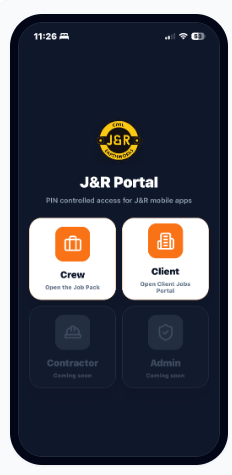
The updated J&R Portal should show the Crew and Client buttons from the new launcher. If an older menu still appears, the phone may be holding an old saved app cache.
On iPhone, start from the Settings app. This is used to clear Safari website data that can keep old portal screens cached.
Scroll down to Apps in Settings. If it is hard to find, use the Settings search bar instead.
Search for Safari or scroll through Apps, then open Safari settings.
Tap Clear History and Website Data, then reopen the J&R Portal. If needed, remove the old Home Screen shortcut and save the portal again.
The J&R Earthworks Client Jobs Portal gives approved client representatives secure access to their own job information, site evidence, documents, photos, videos, and project requests. The portal can be saved to Safari, Chrome, or desktop as an app for quick access.